Choose your image
Select one JPG or PNG, or try the public sample. Keep your original: ImageTool creates a new file without overwriting it.
Reduce your image to under 100KB with room to preserve more detail. Check the actual file size, dimensions and format before saving.
A smaller file starts here
Drop an image, or choose one from your device.
JPG or PNG · up to 40 MB · 32 megapixelsYour image stays with you. Processing happens in this browser. No image is sent to a server.
See exactly what you’re saving. No guessing from a file name.
Reading your image
Change the limits or choose another image, then try again.
KB
Meets the file requirements you entered.The destination website may have other requirements. Check visual quality before uploading.
Single file. No account, no ZIP.
Look in your browser’s downloads. On a phone, you may need to open Files → Downloads or use the browser’s Share / Save option. Exact steps vary by browser.
Select one JPG or PNG, or try the public sample. Keep your original: ImageTool creates a new file without overwriting it.
Check the size limit on your form. Add a minimum, exact width and height, or a different output format only when your destination requires them.
Review the real bytes, pixels and format. Open the full-size preview to check faces, text and signatures, then download the file you want to use.
This page starts with a strict maximum of 100KB: fewer than 100,000 bytes. Compared with a 20KB or 50KB limit, that allowance can support more detail, more pixels or gentler JPEG compression. It does not guarantee an unchanged photograph; the result depends on the source, its dimensions and visual complexity.
If you searched for resize image to 100KB, first check what must change. A 100KB limit controls stored bytes; resizing in pixels controls width and height. Leave dimensions automatic when the form gives only a file-size maximum. If it also specifies pixels, enter those dimensions in Other upload requirements. The tool keeps your specified dimensions and reports failure if it cannot meet the byte limit at that size.
Use the same original to compare the 50KB and 100KB examples below. Look at hair, edges, small writing and fine lines. An original already below 100KB may not need a size reduction at all, but you should still check its format and dimensions against the destination. Keep your original if it already satisfies every rule.
Choose JPEG for a photograph when the form accepts it. Choose PNG when transparency is required and allowed. A transparent PNG can take more bytes than a visually similar JPEG, so inspect the result instead of assuming a larger target will always be enough.
Compare 50KB compressor and 20KB compressor against the limit your destination requests. Start each comparison from the same original image.
Need exact pixels as well as a KB limit? Read the guide to KB limits and fixed pixel dimensions for measured success and failure cases, then keep only the settings your destination permits.
To compress JPEG to 100KB, leave JPEG selected and start from the original photo. JPG and JPEG are names for the same format. The default output must be smaller than 100,000 bytes; selecting At most permits that exact boundary.
Review hair, fine edges and small text at full size. JPEG re-encoding can lose detail, even if width and height stay the same. A JPEG that already meets all selected requirements can remain unchanged. If you need transparency, choose PNG and follow the destination’s format rule instead of renaming the file.
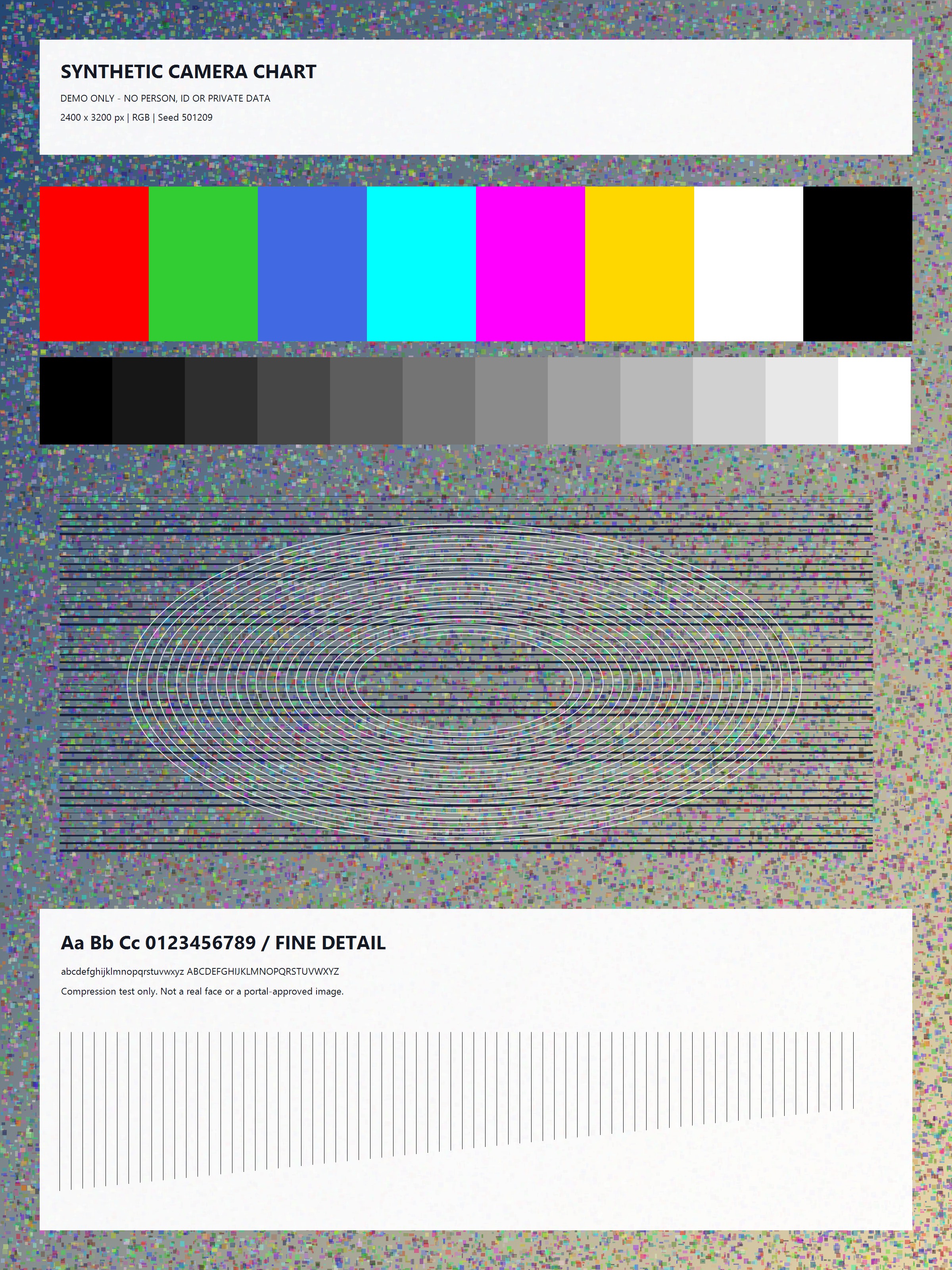
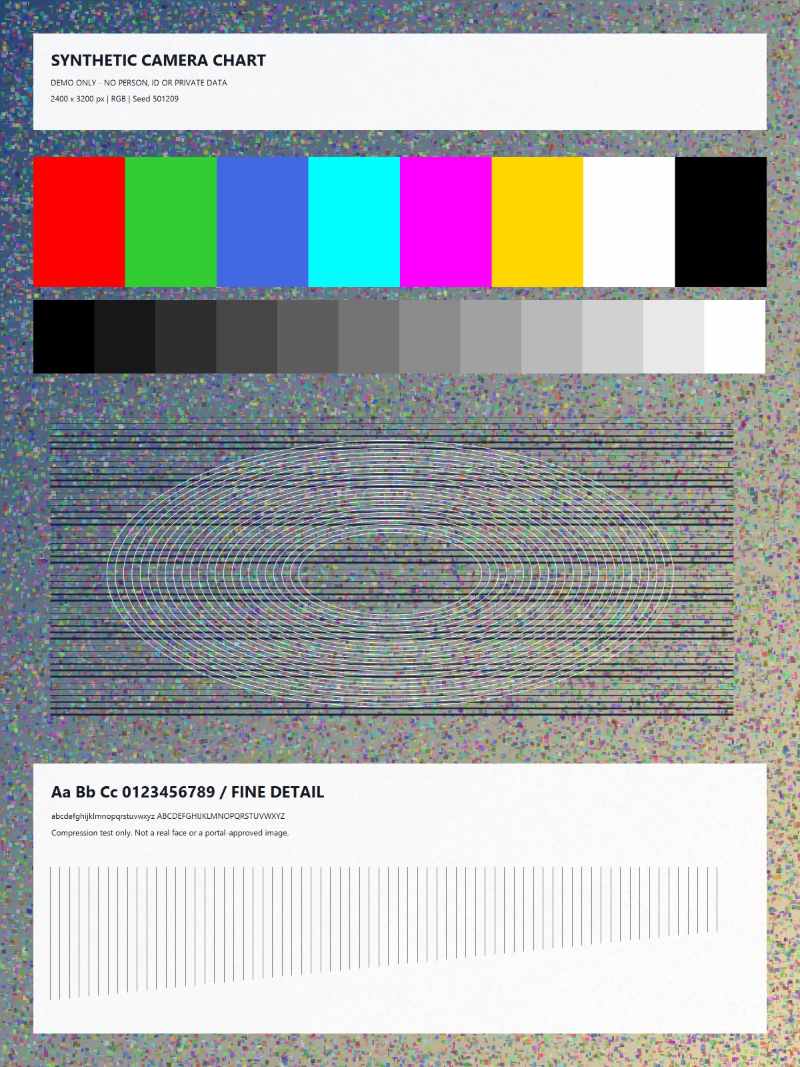
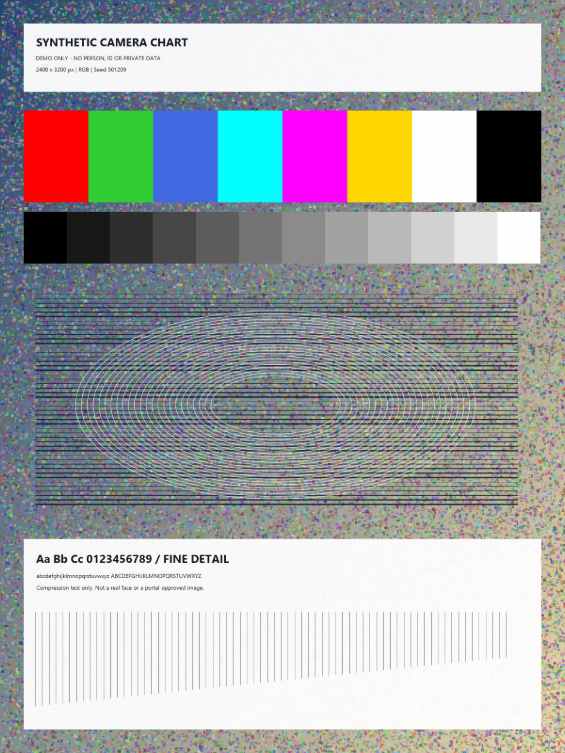
These public, synthetic examples contain no applicant information. Each result below is an actual generated file: open or download it to inspect the detail and compare the byte count. Different browser encoders and your own image can produce different results.
Maximum: under 100KB · KB = 1,000 bytes · automatic dimensions
Original: 1,905,559 bytes · 2,400 × 3,200 pixels
Result: 98,478 bytes · 800 × 1,067 pixels · JPEG
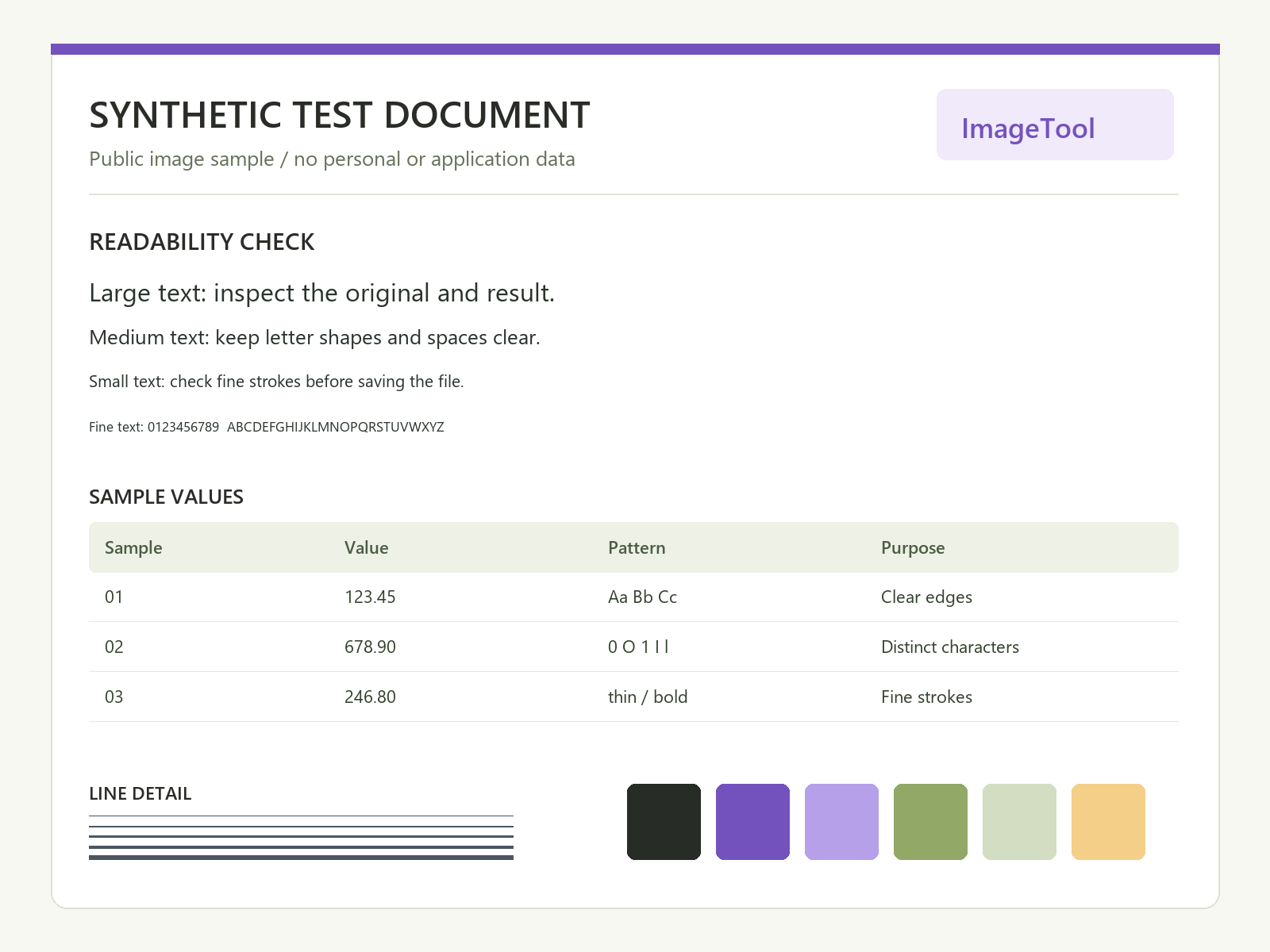
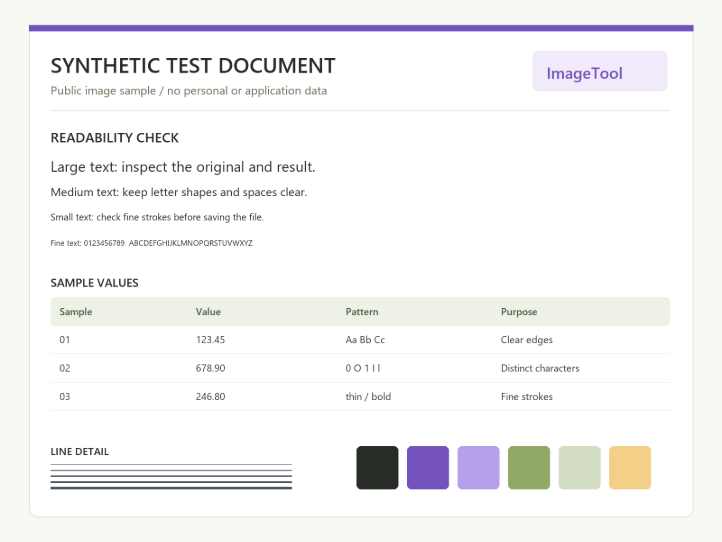
Maximum: under 100KB · KB = 1,000 bytes · automatic dimensions
Original: 74,718 bytes · 1,600 × 1,200 pixels
Result: 99,536 bytes · 1,600 × 1,200 pixels · JPEG
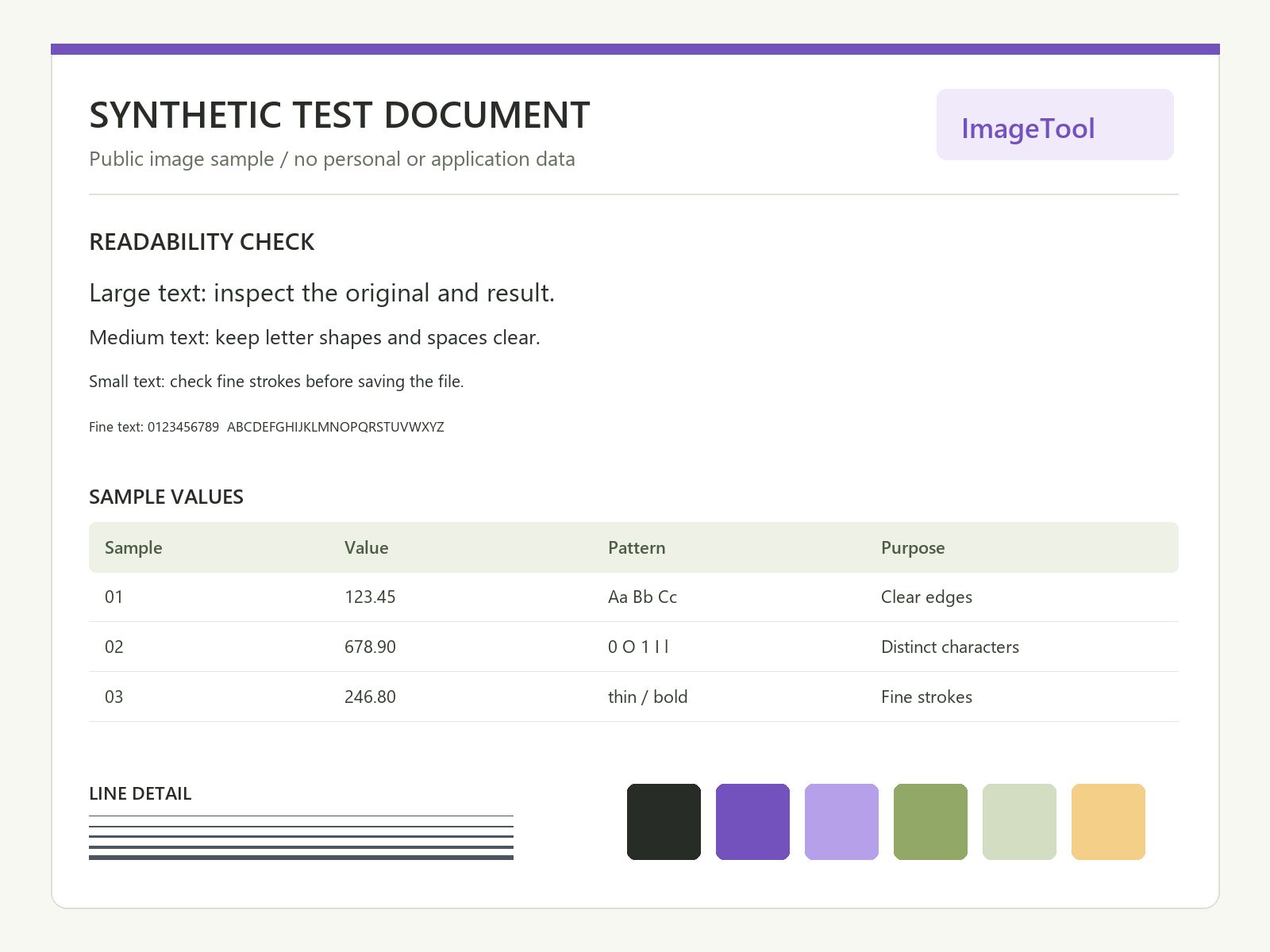
Maximum: under 100KB · KB = 1,000 bytes · automatic dimensions
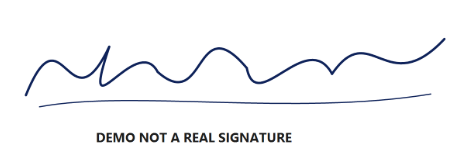
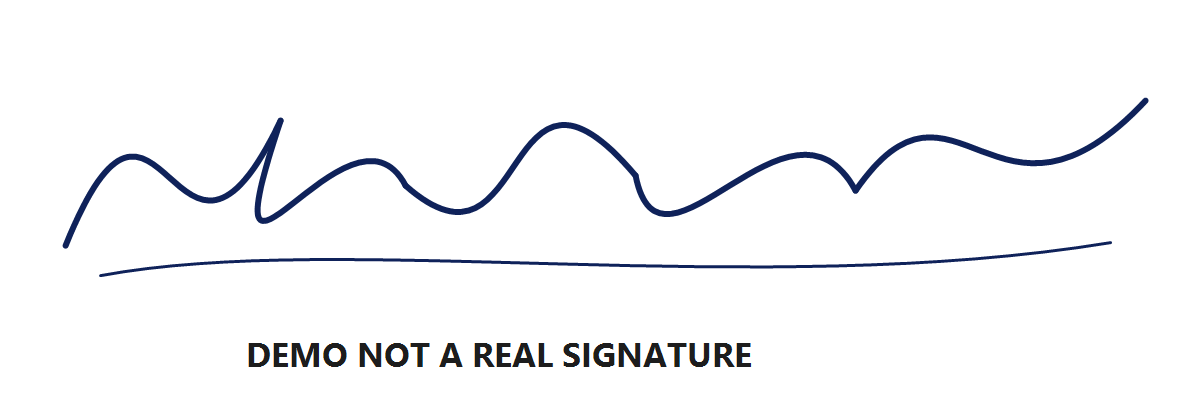
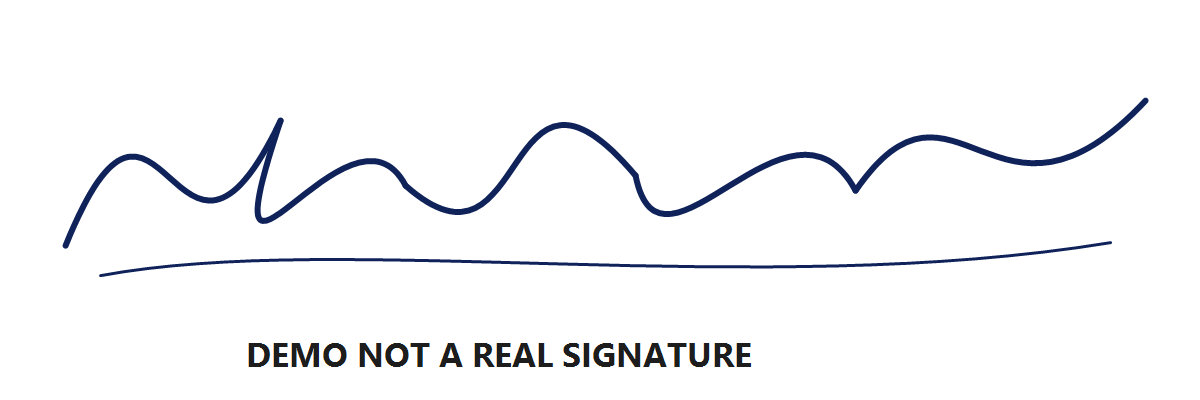
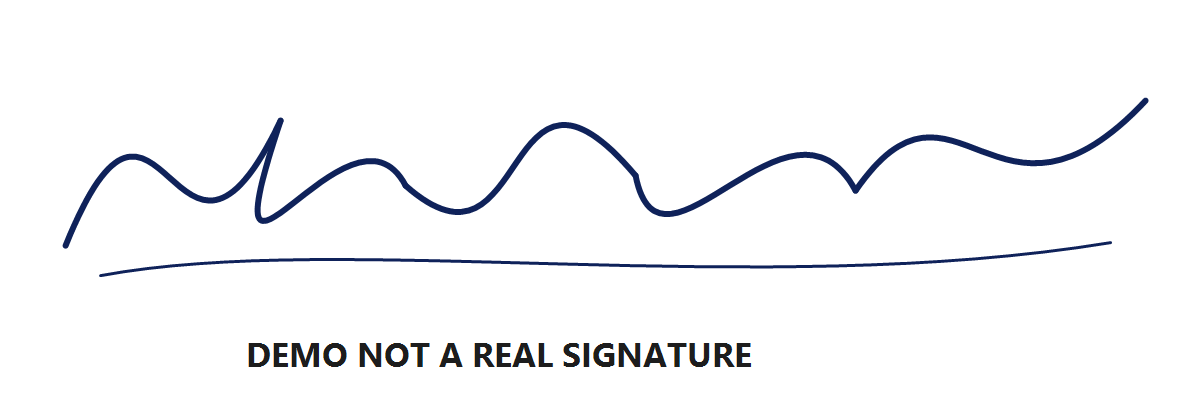
Original: 20,040 bytes · 1,200 × 400 pixels
Result: 20,040 bytes · 1,200 × 400 pixels · PNG
Original file preserved: no re-encoding or pixel changes.
A smaller file is useful only if its important details remain readable. These examples demonstrate the tool, not approval by any application portal.
KB measures stored data; pixels measure width and height. There is no fixed pixel equivalent of 100KB. Two images with identical dimensions can have very different file sizes because colour, texture, noise and format affect the encoded result.
ImageTool checks actual bytes instead of trusting a rounded number in a file manager. It also checks the decoded dimensions and file signature. Renaming a PNG to .jpg does not convert it into JPEG. Use the format the destination supports, even when another format produces a smaller file.
With automatic dimensions, the JPEG tool compares a limited set of sizes and compression levels to find a useful result within your limit. It cannot promise the best possible image for every source. Keeping a large number of pixels inside a very small file can create visible blocks or smudged text; fewer, clearer pixels may be preferable when your form allows them.
PNG retains transparent areas, while JPEG uses a white background in their place. PNG is not automatically smaller: complex photos can be especially difficult to fit at a low limit. Review the original and result at their real size. If important information disappears, return to the original and reconsider the allowed settings.
Check the complete instructions, including a minimum size, exact dimensions, accepted format and any background or capture rules. A portal can reject a small file because it has the wrong dimensions or because it expects a live photo rather than an existing image. ImageTool does not test or certify those destination-specific rules.
Confirm that you selected the downloaded result, not the original, and that the upload has finished. If bytes, format and dimensions match but the form still rejects it, read the portal’s own guidance or contact its support. Repeatedly lowering the size can damage the image without solving the actual problem.
Tap Download after reviewing the result. Look in your browser’s downloads or the Files app’s Downloads folder. Some browsers open a preview first and require Share or Save. The exact steps depend on the browser and device; the download button cannot confirm where a file was saved.
Save any result you need before leaving or reloading the page. Switching language keeps your original image, compression settings and available result in the same tab without a confirmation prompt. Result-area size shortcuts also reuse the original, so you do not compound the loss by compressing the previous output.
Check the rules for your destination
Different organisations can require different limits, dimensions, backgrounds and file formats. Check the current official page for your specific application and year. A general search for a photo compressor cannot tell you all of those rules.
This site is an independent tool. It is not affiliated with an application portal and cannot guarantee acceptance. Use the page in the language you prefer, while keeping the numbers and format from your actual form.
The default means under 100,000 bytes, not exactly that number. A smaller clear file can satisfy a maximum. Enter a minimum too if your form requires a range; the tool does not add artificial padding.
Here, 1 KB is 1,000 bytes and 1 KiB is 1,024 bytes. They give different limits. Copy the unit from your form; if it is unclear, inspect its guidance and the actual byte count.
There is no fixed conversion. Pixel dimensions, image detail, format and compression all influence bytes. Enter dimensions only when required, then check both pixels and file size.
Yes. Enter both pixel values in Other upload requirements and choose whether to add space or crop when the shape differs. The tool reports an error if it cannot meet the size limit at those dimensions.
You can enter a minimum smaller than your maximum, but this is a requirement to check, not a guarantee that a tiny image can be enlarged. The tool searches for a real encoded result in that range and reports failure if none is found. It does not add artificial padding.
A tight byte limit can force strong compression or fewer pixels. Review the full-size preview. Use a clearer original or a larger allowance if the destination permits it; do not upload a result whose important details are unreadable.
Choose PNG output to preserve transparency. JPEG cannot store transparency, so transparent areas become white in JPEG output. A portal requiring JPEG will not accept a PNG just because its filename ends in .jpg.
No. The checks cover the size, format and dimensions you enter. The destination can have other rules for content, background, capture method or eligibility. Read its current official instructions.
Check the browser’s Downloads list or Files → Downloads. If a preview opened, use the browser’s Share or Save action. Check the saved filename and size before selecting it in another form.
Your image is processed in this browser and is not uploaded. When you switch language, the tool temporarily saves your image, settings and available result in browser storage, then deletes that saved transfer after restoring it. Google Analytics separately records visits and basic tool events; image contents and original filenames are excluded.