Practical image upload guide
Compress an Image with Fixed Dimensions and a KB Limit
Set the KB limit, exact width and height, and accepted format together. ImageTool keeps requested pixels fixed; if it cannot find a file below the limit, it reports failure instead of silently shrinking the image.
Copy the upload requirements before changing the image
Record the maximum file size, any minimum size, width, height and accepted formats from your destination’s current instructions. These are separate checks: a small file is not proof of correct pixels or a supported format. Requirements about live capture, background or what the image contains need their own checks.
Use the image size reducer in KB for a specific maximum, or start with the 20KB compressor or 100KB compressor. The examples below are controlled tool experiments, not the rules of an exam, university or government service.
Enter KB, fixed pixels and format in the tool
Enter Maximum size in KB. Open Other upload requirements and set Size unit to KB (1,000 bytes) or KiB (1,024 bytes) only according to the requirement you have. Under is strict: under 20KB means at most 19,999 bytes. At most includes the upper limit. Do not infer a portal’s byte convention when its instructions only say KB.
Enter both Width (pixels) and Height (pixels) when exact dimensions are required. For our experiment, use JPEG and Keep the whole image · add space under When the shape changes. The source and requested sizes share an aspect ratio, so these cases add no border. A different shape may add space; a crop may remove content, so check what your destination allows.
Leave Minimum size empty when there is no stated minimum. For a settings example of 20–50KB and exactly 200 × 230 pixels, enter a minimum of 20, maximum of 50, width 200 and height 230. Choose Under or At most according to the stated upper boundary. This example is not a universal application requirement. A minimum is a constraint to check, not a promise that every small source can be made larger; the tool adds no artificial padding.
Select your original image, or use Try a sample image for the synthetic chart shown below. After changing settings on a selected image, choose Apply requirements to run again from the original. Inspect any added space or crop before saving: important details must remain visible.
Compare a fixed-pixel failure with two permitted alternatives
These three runs use the same synthetic source and the current ImageTool browser engine. They show why a byte limit, fixed dimensions and readable detail can conflict. A failure means this engine did not find a valid output within its search limits; it does not prove that no encoder could ever produce one.
The tool keeps requested dimensions when it fails. It does not quietly shrink the image, create a fake download or add unused bytes to fill an allowance. The saved successes below show actual measured results, not an estimate of what your own image will produce.
Same source, three real fixed-dimension attempts
In this recorded synthetic-chart example, the engine found no valid output at 1,200 × 1,600 pixels under 20KB. Under 100KB, it saved a 97,518-byte JPEG at the same dimensions. These results are specific to this source and the recorded settings; all three runs use a strict maximum and start from the original.
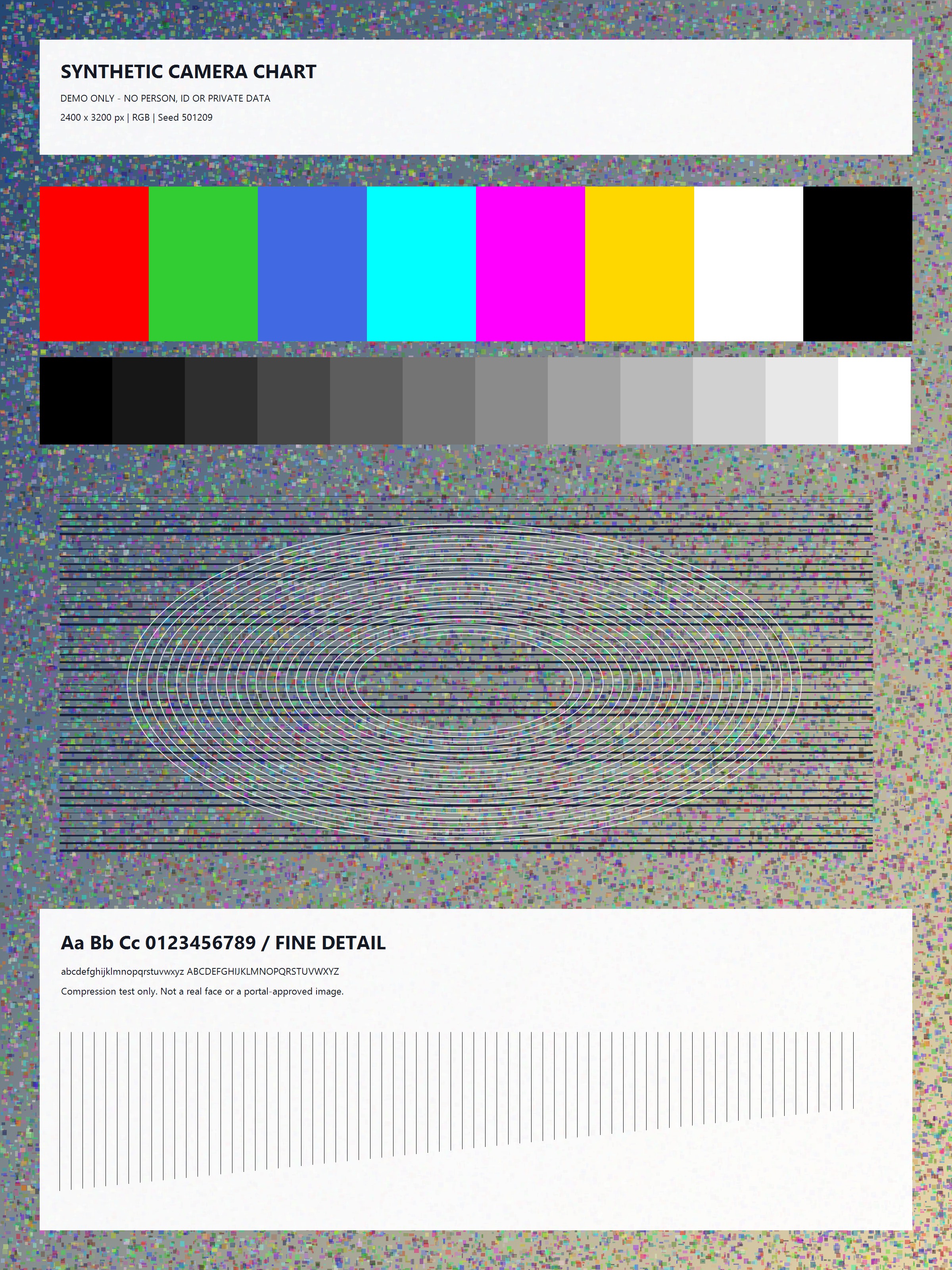
1,905,559 bytes · 2400 × 3200 pixels · JPEG
Requested pixels and tight limit: no valid output
Under 20KB · 1200 × 1600 pixels · JPEG
The engine could not meet this maximum at the requested fixed dimensions. It did not reduce the pixels.
No output file was produced. Keep both requirements if they are mandatory; review the source or the destination’s permitted options.
Same pixels, larger allowed file
Under 100KB · 1200 × 1600 pixels · JPEG
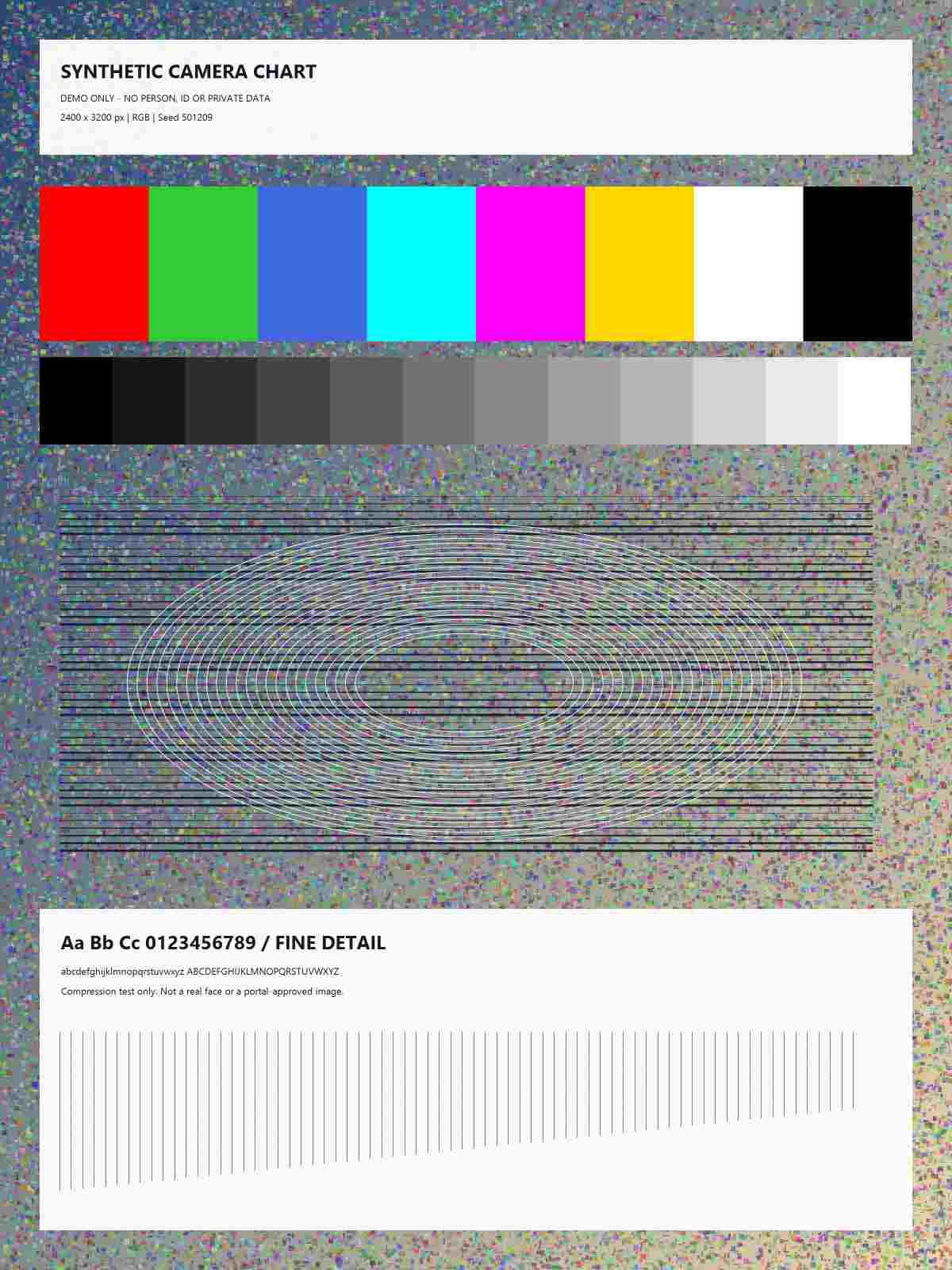
97,518 bytes · 1200 × 1600 pixels · JPEG
Heavy JPEG compression: inspect fine detail before using this result.
Download this resultUse this option only if the destination permits the larger file. Fixed pixel dimensions remain unchanged.
Same tight limit, fewer allowed pixels
Under 20KB · 600 × 800 pixels · JPEG
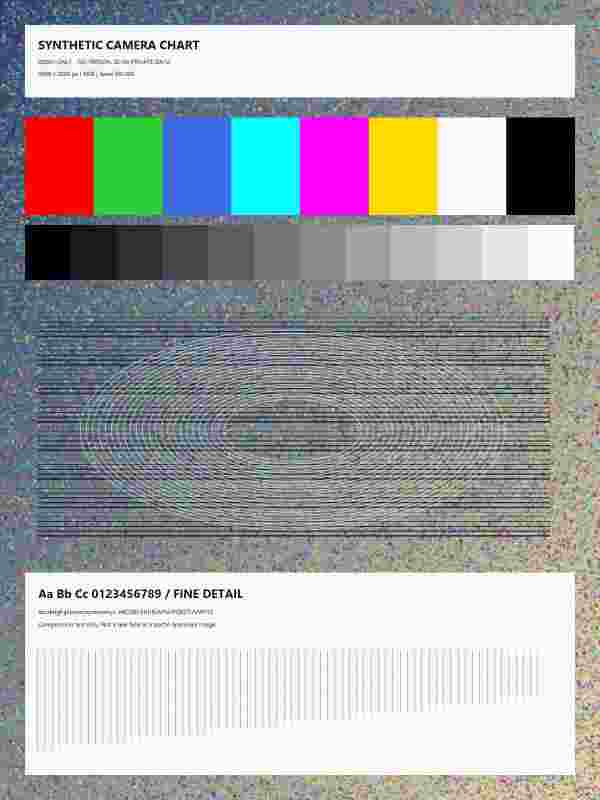
18,431 bytes · 600 × 800 pixels · JPEG
Heavy JPEG compression: inspect fine detail before using this result.
Download this resultUse this option only if the destination permits fewer pixels. The 20KB limit remains unchanged.
These are measured results from the recorded browser, not guaranteed byte counts for other browsers or images. No official upload requirement is inferred from this experiment. Measured 2026-09-17 in Chrome 152.
Change only a requirement your destination allows
If the destination requires the original fixed dimensions, do not use the smaller-pixel alternative. If it requires the tighter file-size limit, do not use the larger-file alternative. When both are mandatory and the current attempt fails, start from a clearer or simpler permitted original, review allowed formats, or ask the destination for its supported preparation method.
Both successful examples required heavy JPEG compression. Passing byte, pixel and format checks does not mean small text is readable or that the destination will accept the contents. Inspect the downloaded file at actual size; the image compression quality guide compares further detail and format trade-offs.
Why can a small-enough image still be rejected?
Check for a minimum file size, exact rather than maximum dimensions, a different accepted format, and instructions about background or capture. A process that requires a live photograph may reject an existing image regardless of its file size. Renaming a PNG to .jpg does not turn it into JPEG. JPEG also replaces transparent areas with white, which may matter for your upload.
Use the result’s actual bytes, dimensions and format, then inspect the saved file. A rounded KB display can hide a boundary difference. ImageTool checks the constraints you enter; it does not validate identity, application eligibility or a destination’s unpublished rules.
Confirm that you selected the downloaded result rather than the original, and that the upload has finished. If the actual bytes, format and dimensions match but the form still rejects the file, read the portal’s guidance or contact its support. Repeatedly lowering the maximum can damage image detail without resolving the reason for rejection.