Image Stretcher
Stretch a JPG or PNG by changing width and height independently in pixels or percentages. The full image stays visible without cropping; changing its proportions also changes the shapes inside it.
Free · No sign-up · Processed on your device
Drop a JPG or PNG here
JPG or PNG · up to 40 MB · 32 megapixels
Click either image to view it at full size.
Dimensions
Width and height change independently.
Stretching changes the shape of objects.
PNG keeps transparency. JPEG uses a white background.
See what stretching changes
This synthetic image starts at 1200 × 800 pixels. The wider result uses 150% width and 100% height; the taller result uses 100% width and 150% height.
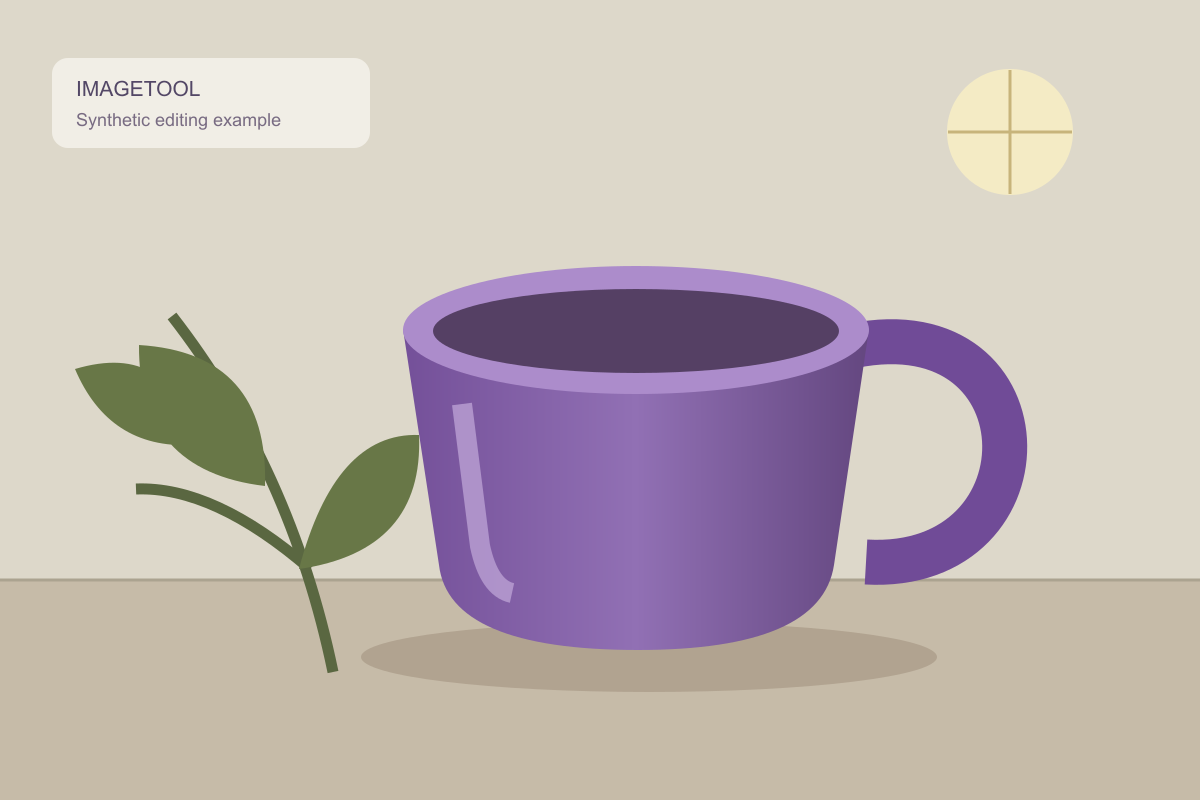
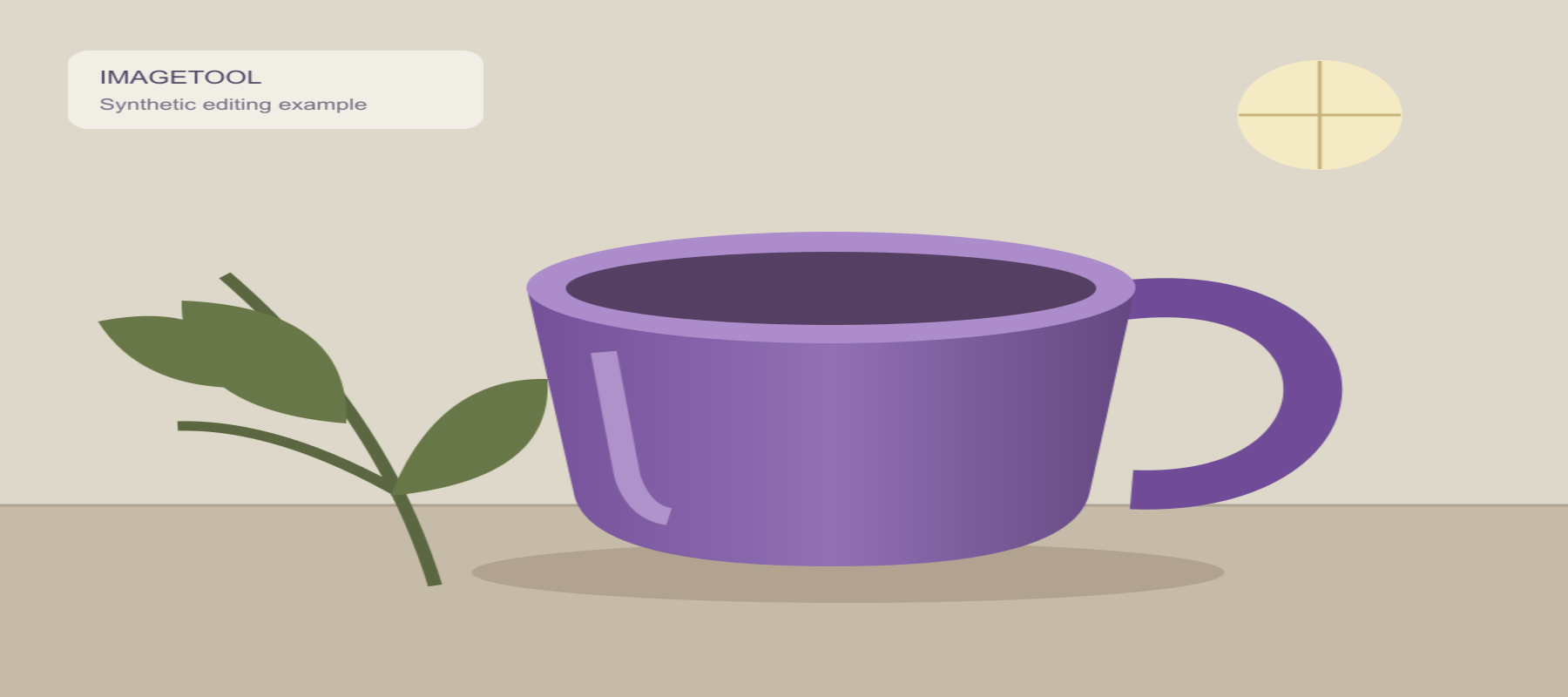
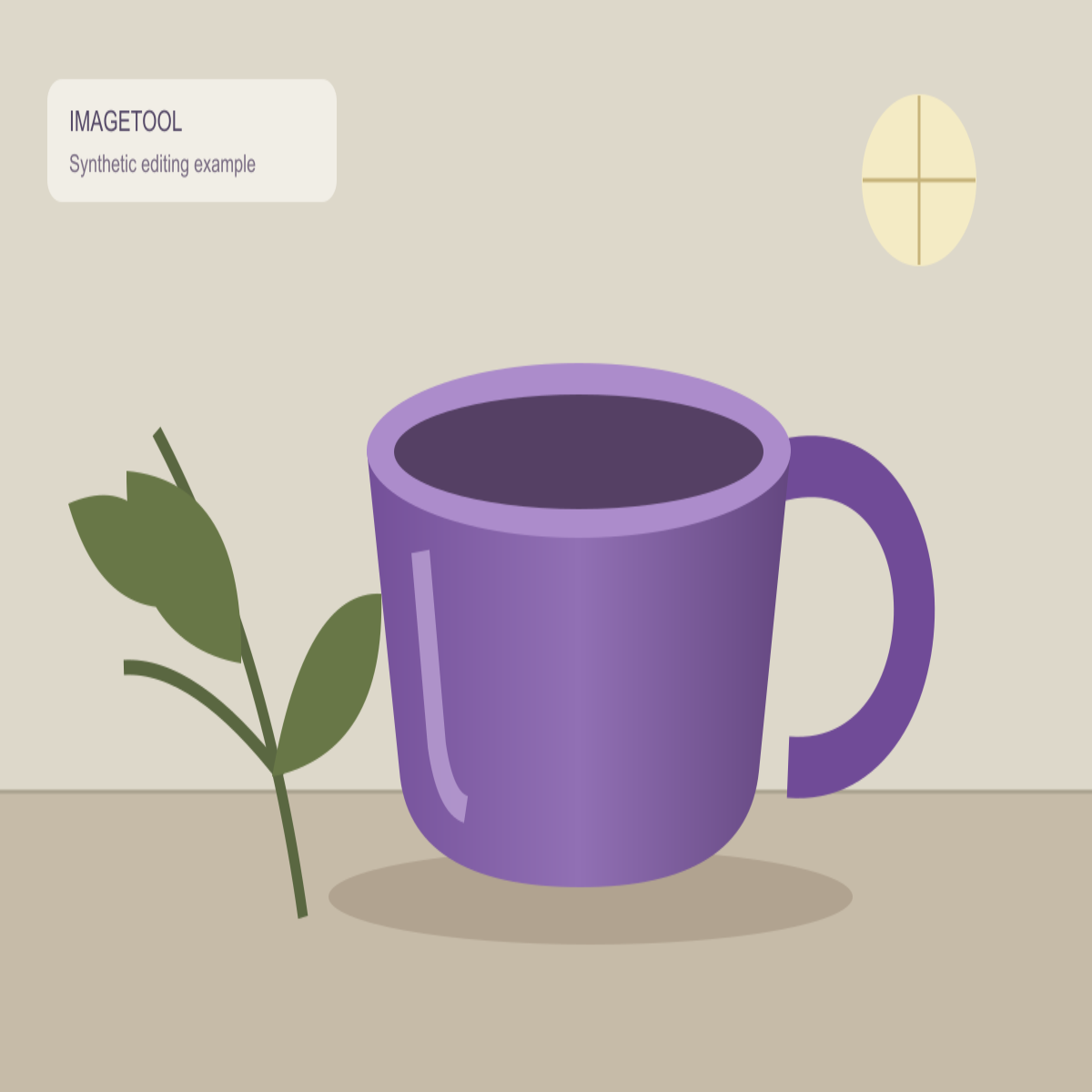
The wider result keeps the whole image but changes the shape of objects. No extra scene content is created.
How to stretch an image
Choose an image
Choose a JPG or PNG from your device, or try the sample.
Adjust width and height
Enter pixels or percentages. Each dimension changes independently.
Preview and download
Compare the original and result, choose PNG or JPEG, and save the file.
Image Stretcher questions
Can I stretch an image without cropping it?
Yes. The whole image is mapped into the width and height you enter. Changing the aspect ratio changes the shapes within it; it does not cut off the edges.
Will a larger result be sharper?
No. Increasing pixel dimensions resamples the image. It cannot recover missing detail, and a large stretch may look soft or distorted.
Can I change only the width?
Yes. Set the width you need and keep the original height, or leave height at 100% in percentage mode. Reset to original size restores both dimensions.
Stretch width or height independently
Use the image stretcher to make an image wider, taller, or fit exact pixel dimensions. To widen a 1200 × 800 image to 1800 × 800, change only the width. In percentage mode, 100% is the original dimension: set width to 150% and leave height at 100% for the same result.
Width and height are not locked together. Stretching one side changes the aspect ratio, so faces, circles, text and other objects can look distorted. Use matching percentages for both dimensions when you want to keep the original proportions.
Stretching, cropping and file size
A photo stretcher or picture stretcher changes the proportions of the existing pixels. It does not crop the image, add a border, or generate new surroundings. Making an image larger also does not recover detail that was absent from the original.
Pixel dimensions and file size are different measurements. This editor does not target a KB limit. If an upload form also limits bytes, download your edit and use the 50KB image compressor. For constraints that must keep exact pixels, read the fixed-dimensions guide before choosing compression settings.
Save the format you need
PNG keeps transparency. JPEG uses a white background for transparent areas and can introduce compression artifacts. Compare the result before downloading, especially around text and high-contrast edges.
You can stretch an image online without an account. Image processing runs in your browser on your device; your picture is not uploaded for editing. On a phone, use the browser download list or share menu to save the resulting file.