Choose your image
Select one JPG or PNG, or try the public sample. Keep your original: ImageTool creates a new file without overwriting it.
Enter your file-size limit in KB, then choose an image. Check the result before downloading.
Set any maximum in KB. The result must stay below it; 50 is only a starting value.
A smaller file starts here
Drop an image, or choose one from your device.
JPG or PNG · up to 40 MB · 32 megapixelsYour image stays with you. Processing happens in this browser. No image is sent to a server.
See exactly what you’re saving. No guessing from a file name.
Reading your image
Change the limits or choose another image, then try again.
KB
Meets the file requirements you entered.The destination website may have other requirements. Check visual quality before uploading.
Single file. No account, no ZIP.
Look in your browser’s downloads. On a phone, you may need to open Files → Downloads or use the browser’s Share / Save option. Exact steps vary by browser.
Select one JPG or PNG, or try the public sample. Keep your original: ImageTool creates a new file without overwriting it.
Check the size limit on your form. Add a minimum, exact width and height, or a different output format only when your destination requires them.
Review the real bytes, pixels and format. Open the full-size preview to check faces, text and signatures, then download the file you want to use.
If you searched for resize image in KB or image resizer in KB, start with the rule you actually need to meet. KB describes the amount of stored data. Width and height describe pixels. Two images with the same dimensions can take different numbers of bytes, so there is no universal KB-to-pixels conversion.
Set the visible Maximum size field before selecting your image. You can enter a whole number or a decimal, such as 75 or 99.5. In KB, these strict limits mean fewer than 75,000 or 99,500 bytes. The result panel checks the actual file, not a rounded size in a file manager.
For a common destination limit, the 50KB compressor, 100KB compressor and 200KB image compressor provide preset starting points. For larger files, the 1MB image compressor starts below 1,000,000 bytes. Changing a preset always starts from your original image.
Compare 50KB compressor and 20KB compressor against the limit your destination requests. Start each comparison from the same original image.
Need exact pixels as well as a KB limit? Read the guide to KB limits and fixed pixel dimensions for measured success and failure cases, then keep only the settings your destination permits.
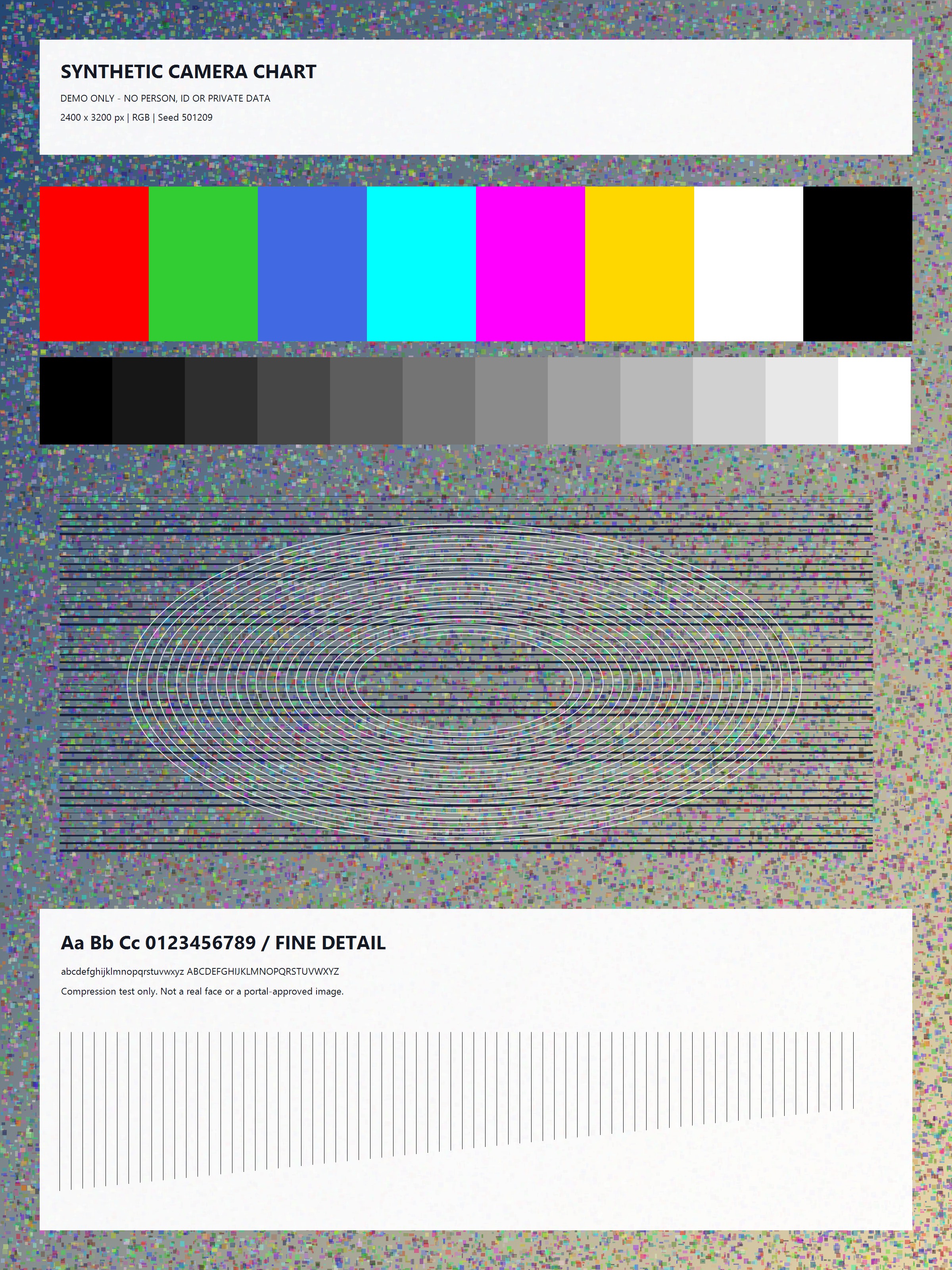
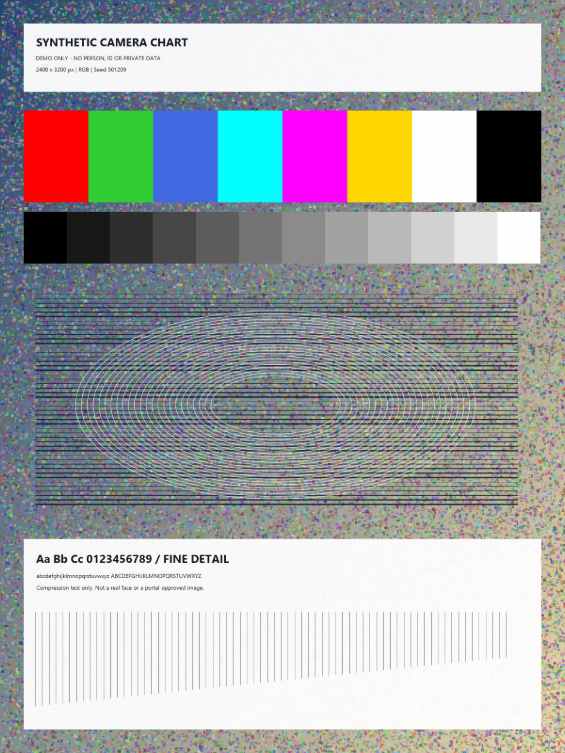
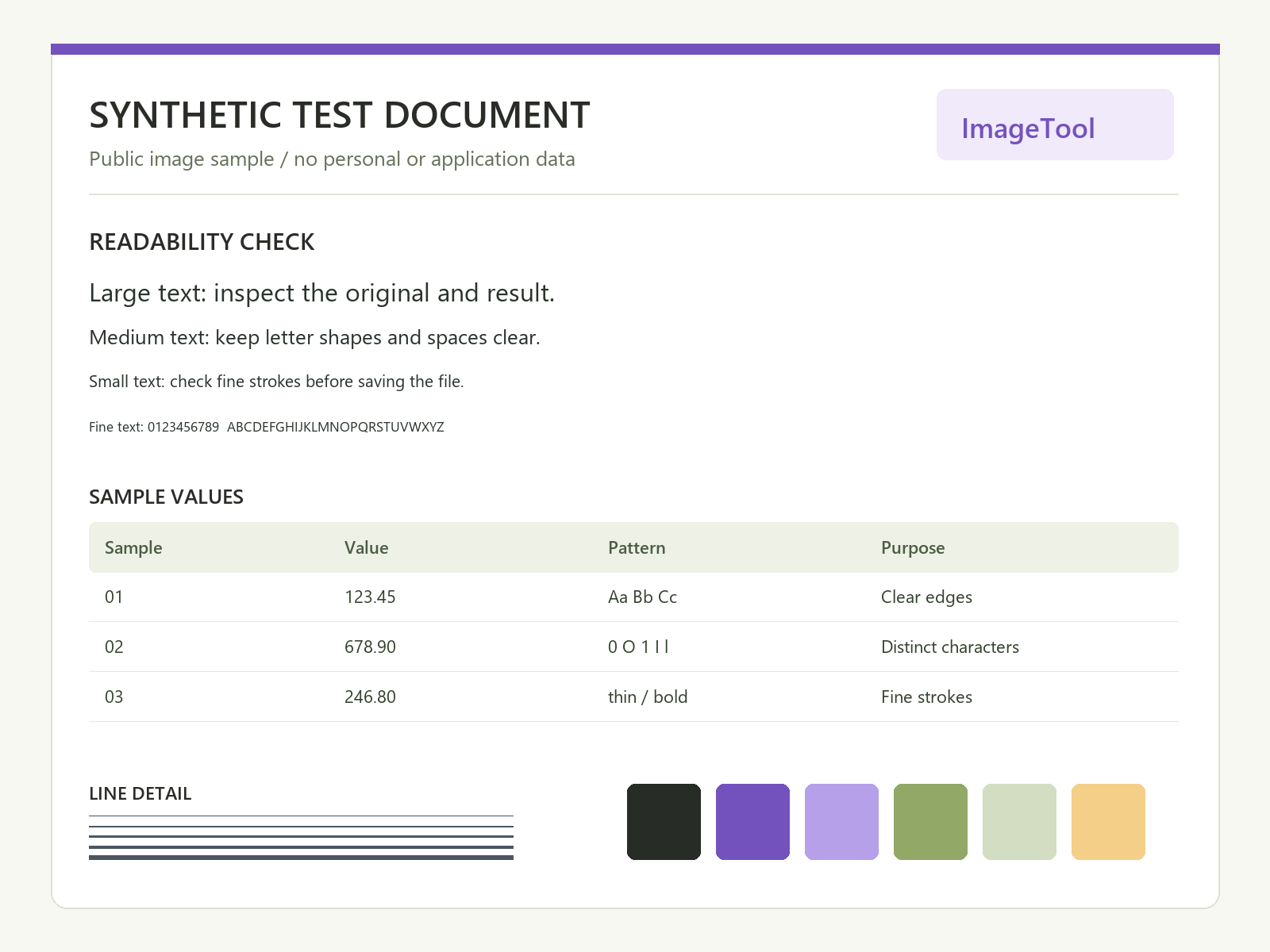
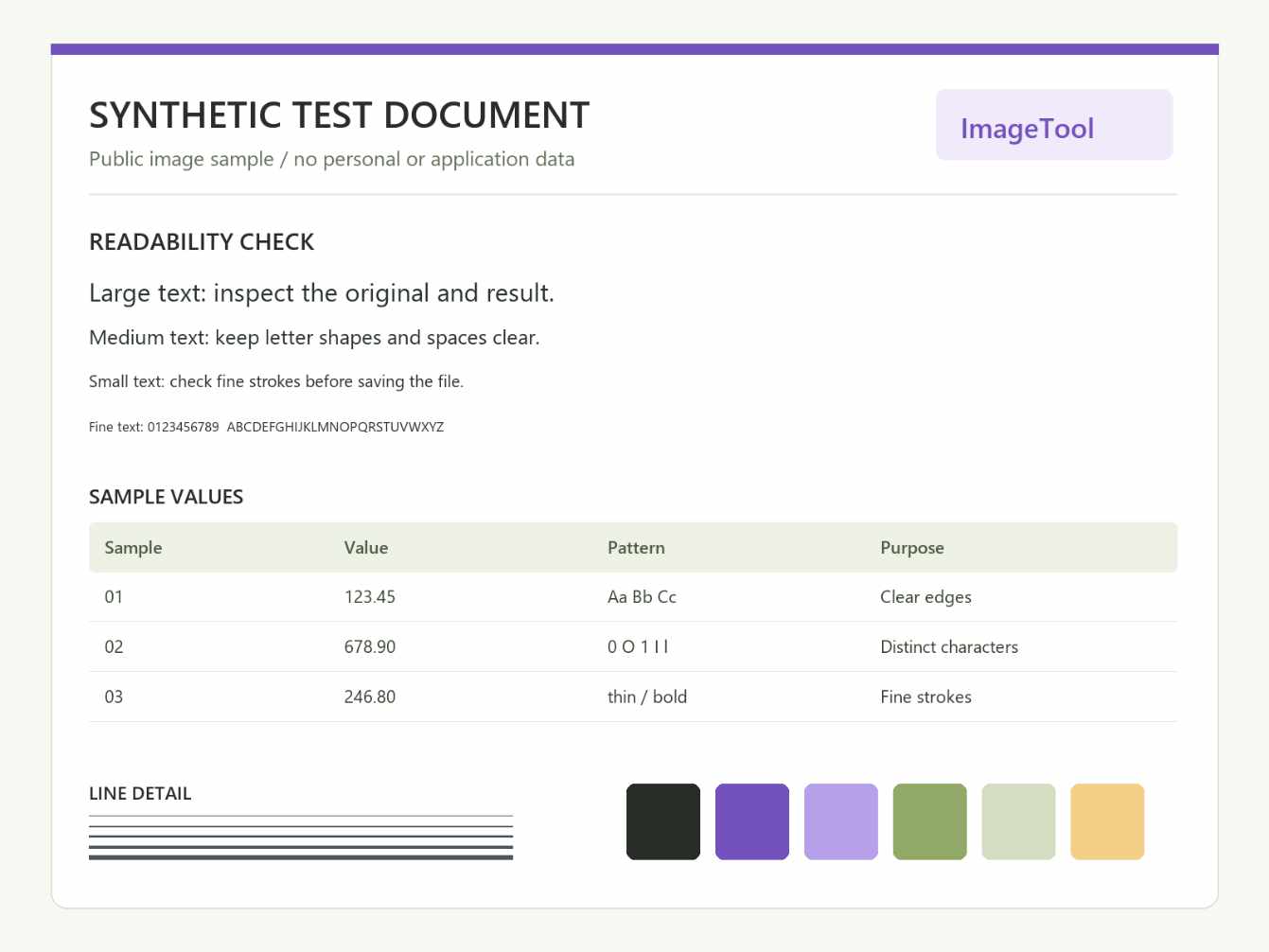
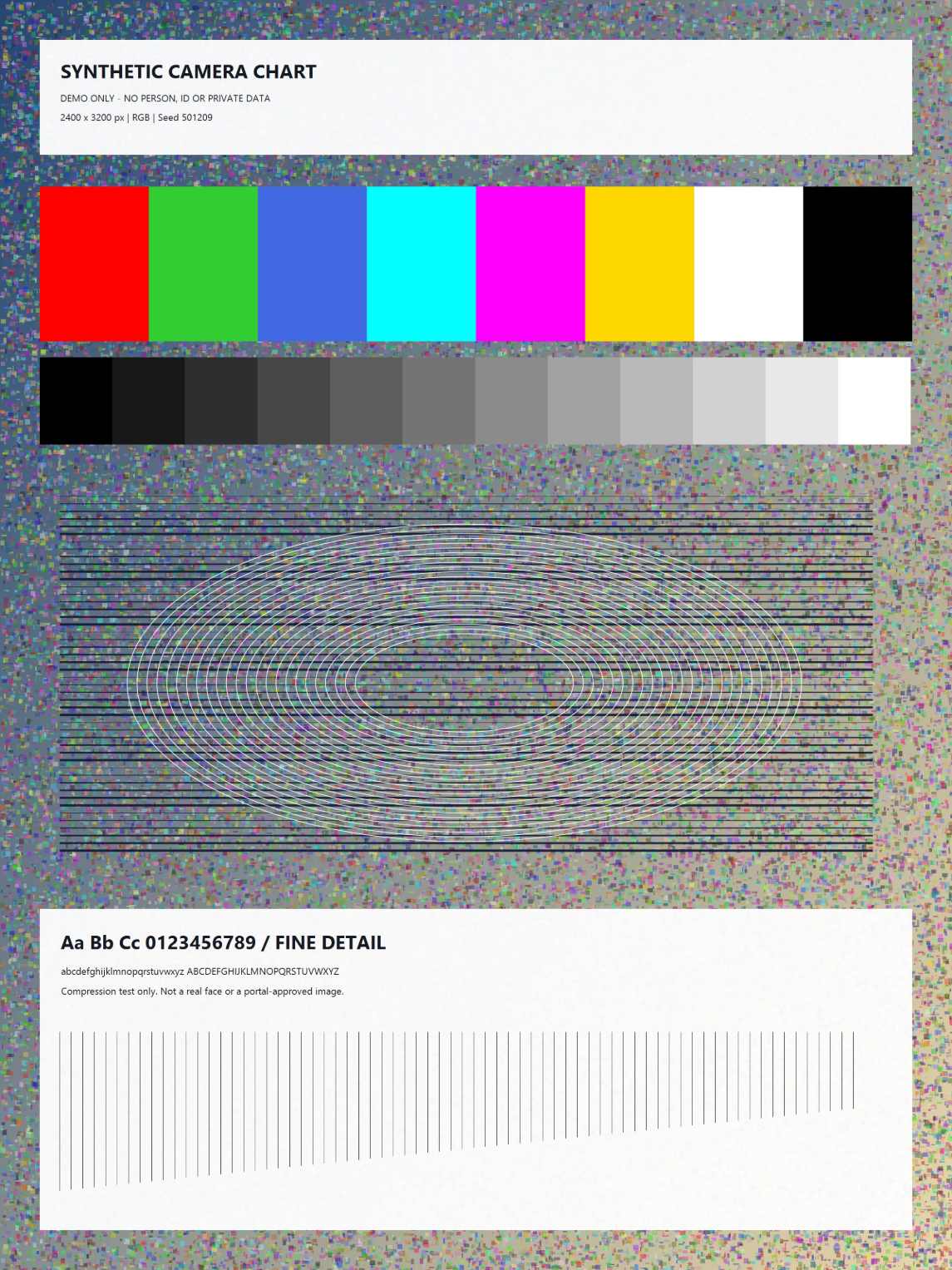
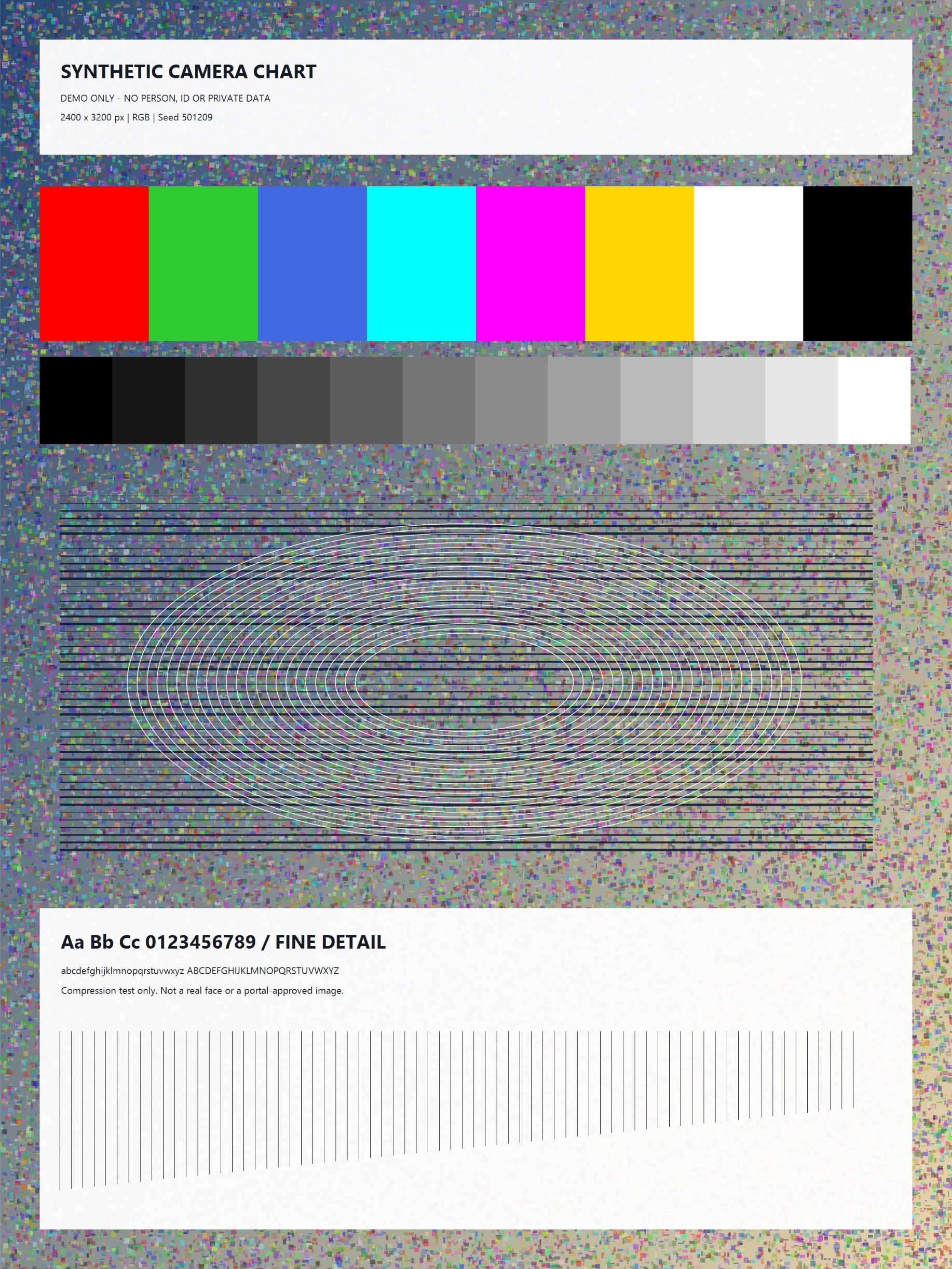
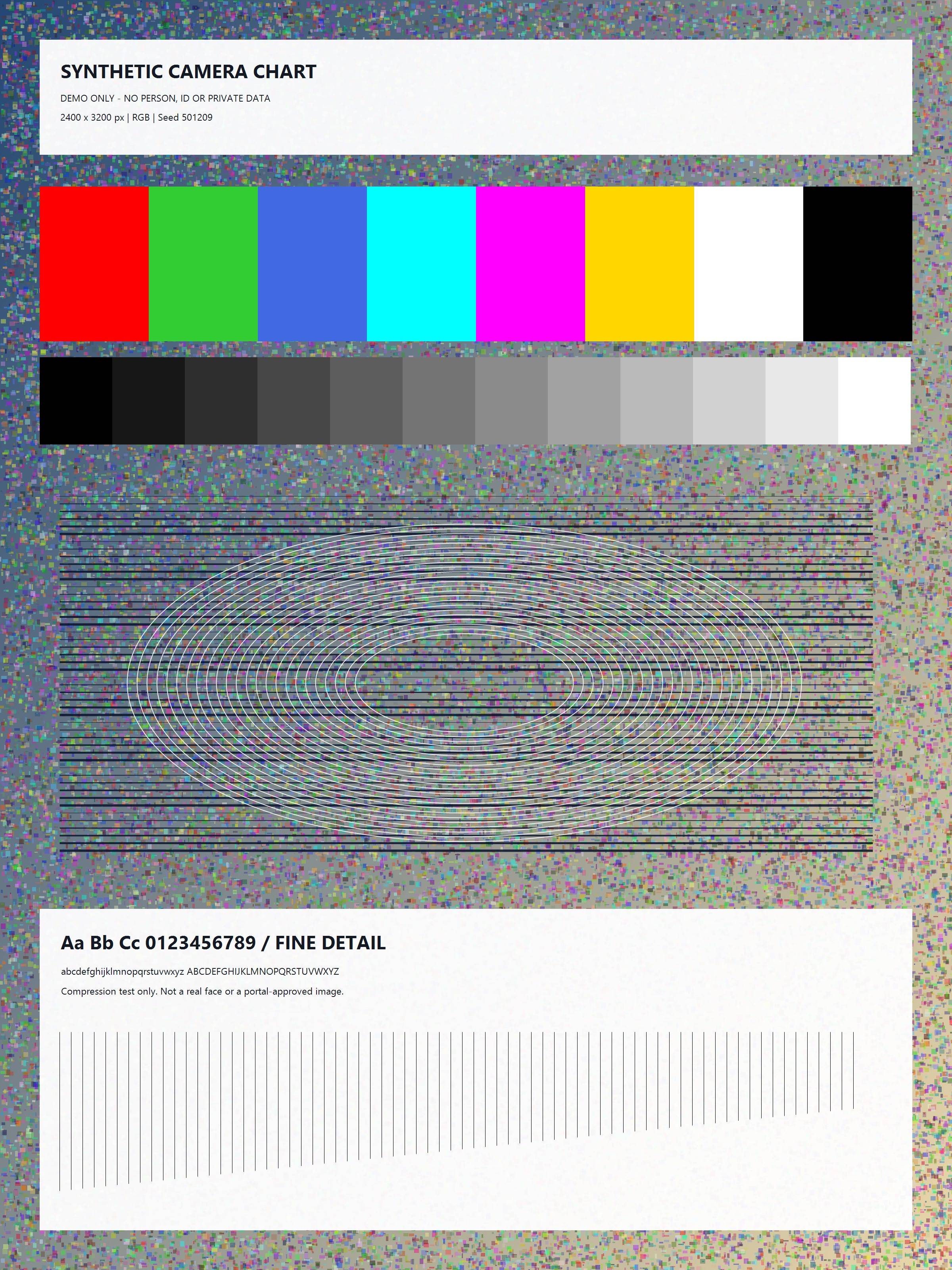
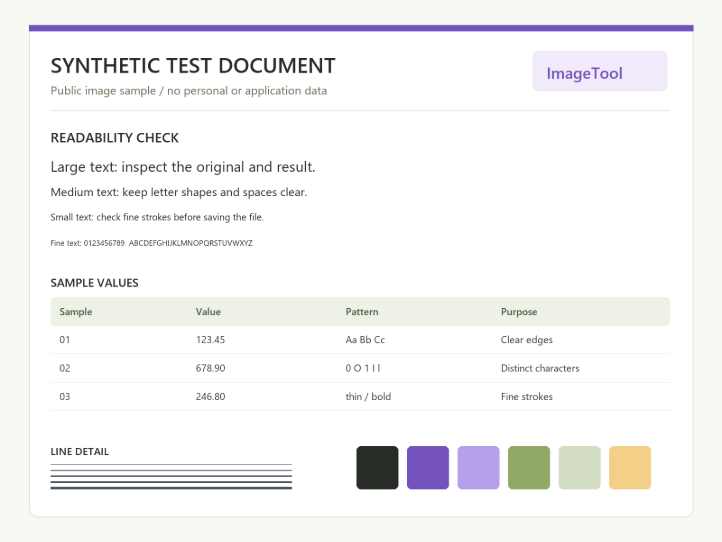
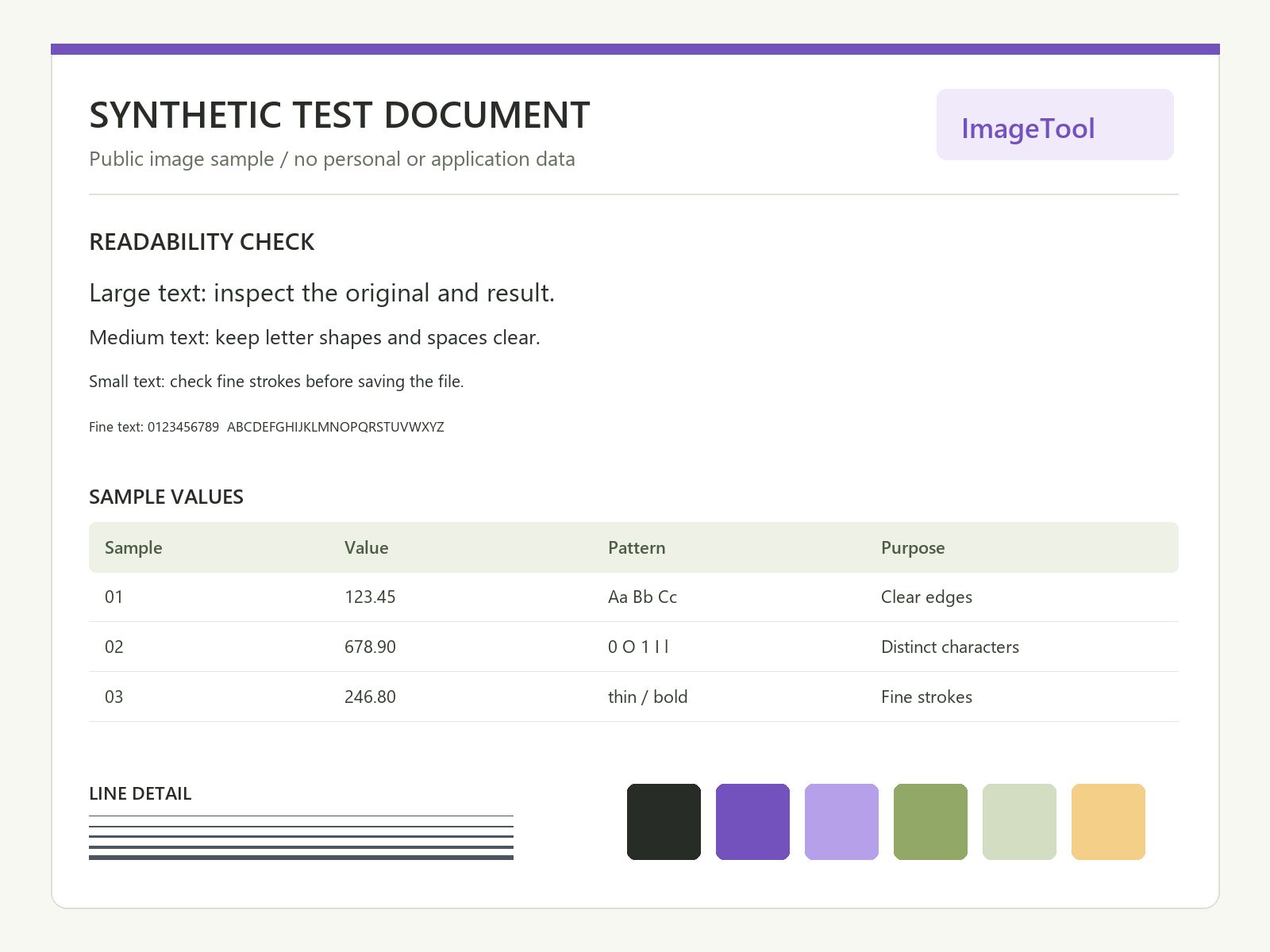
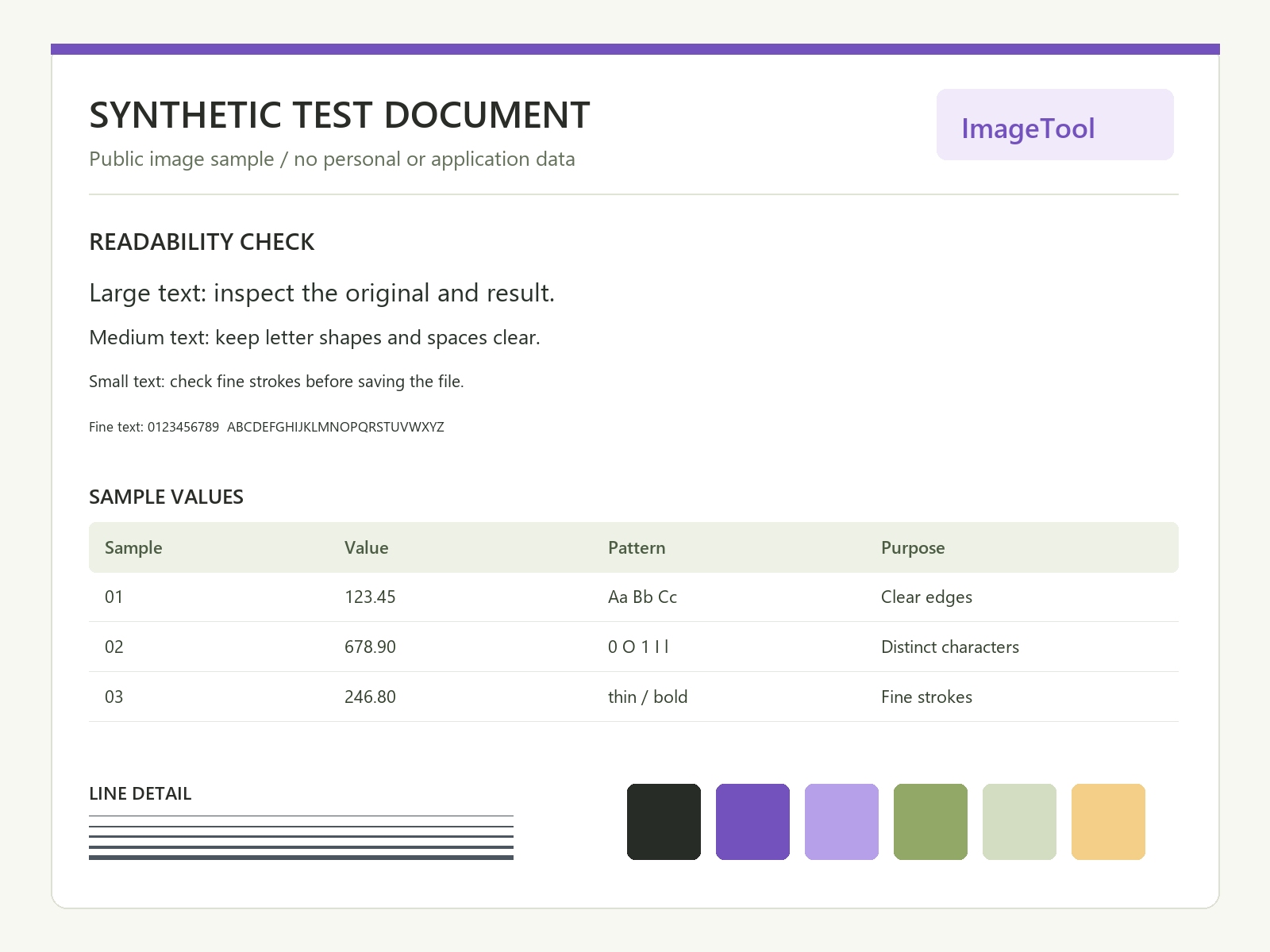
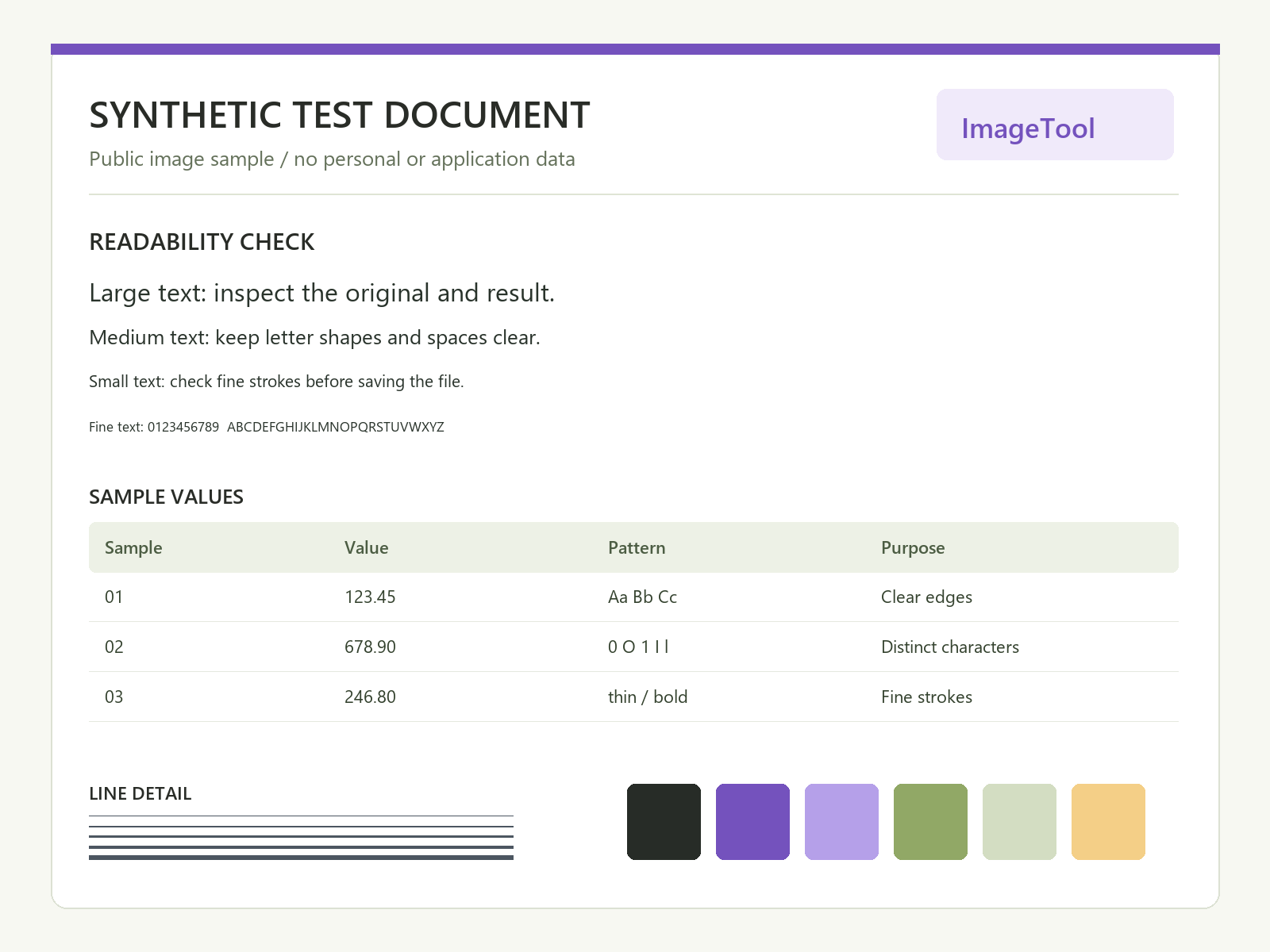
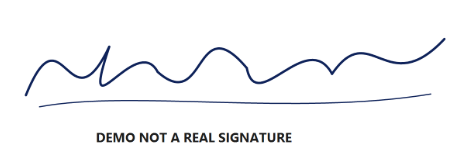
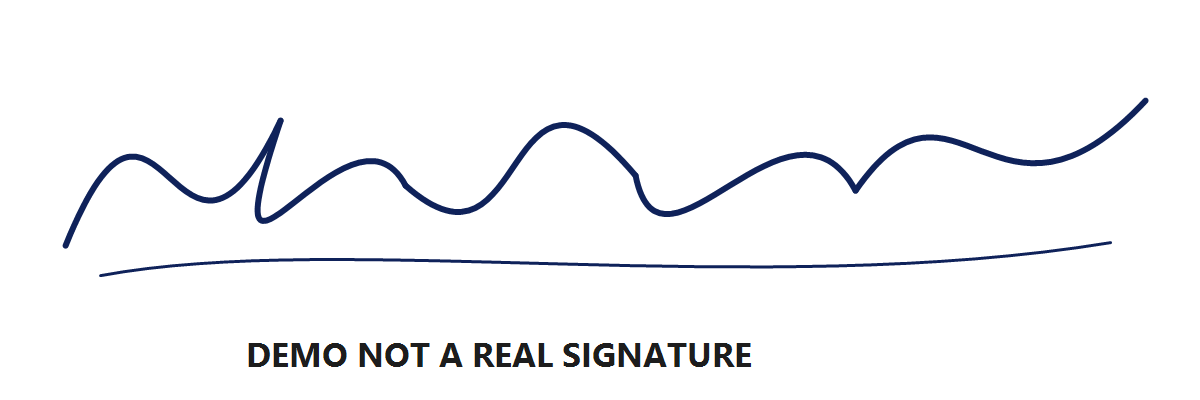
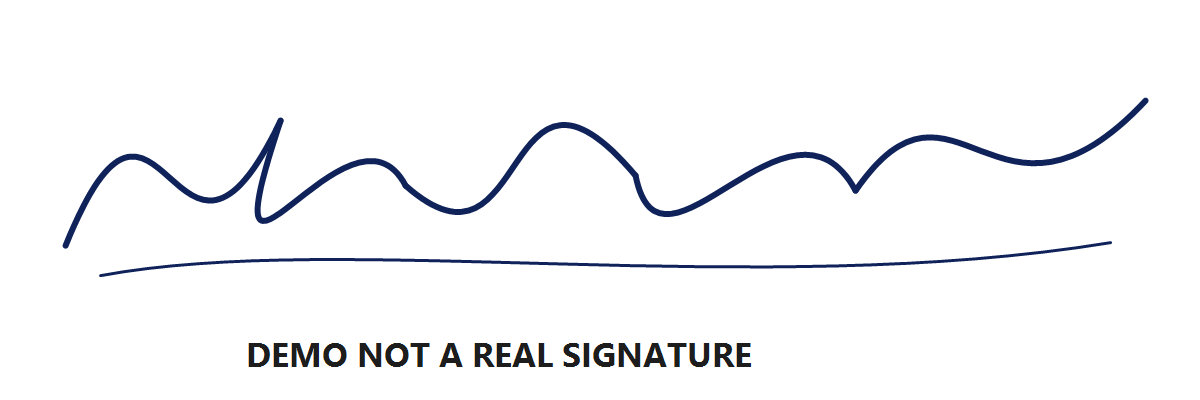
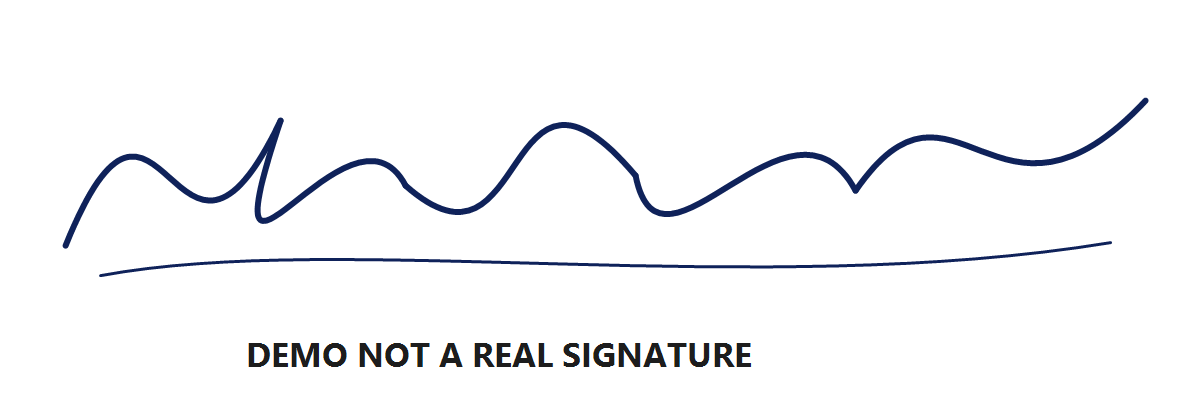
These public, synthetic examples contain no applicant information. Each result below is an actual generated file: open or download it to inspect the detail and compare the byte count. Different browser encoders and your own image can produce different results.
Maximum: under 50KB · KB = 1,000 bytes · automatic dimensions
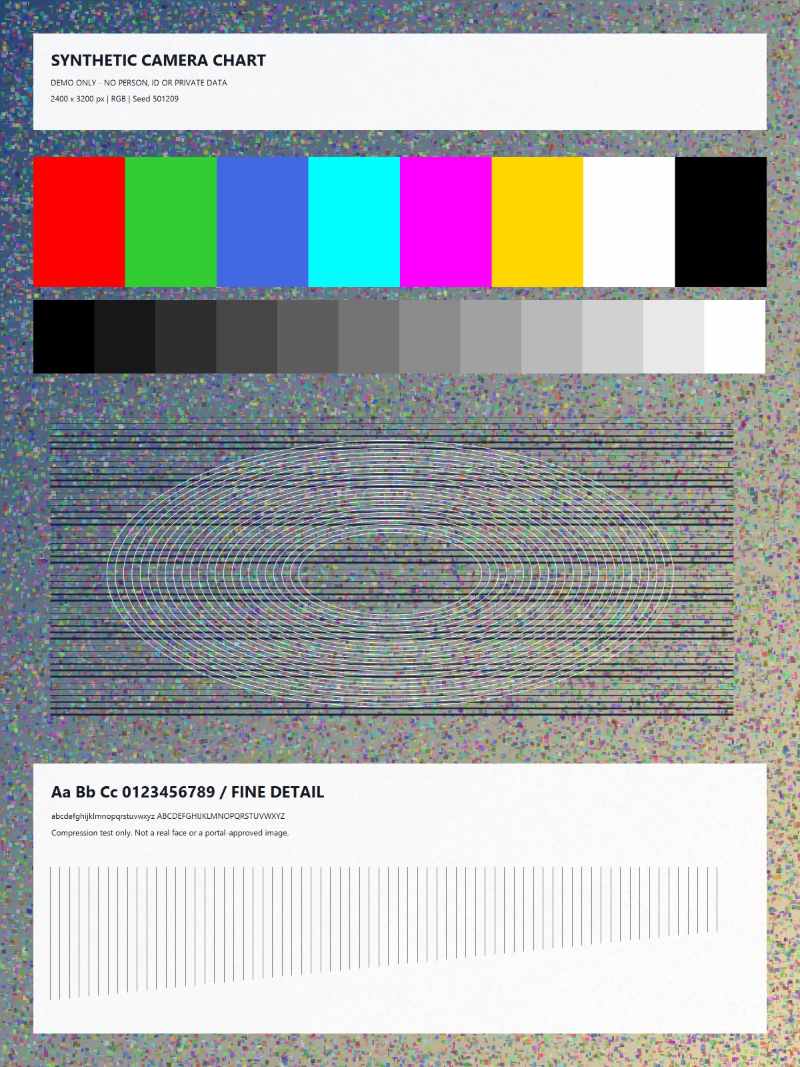
Original: 1,905,559 bytes · 2,400 × 3,200 pixels
Result: 49,575 bytes · 565 × 753 pixels · JPEG
Maximum: under 50KB · KB = 1,000 bytes · automatic dimensions
Original: 74,718 bytes · 1,600 × 1,200 pixels
Result: 49,792 bytes · 1,341 × 1,006 pixels · JPEG
Maximum: under 50KB · KB = 1,000 bytes · automatic dimensions
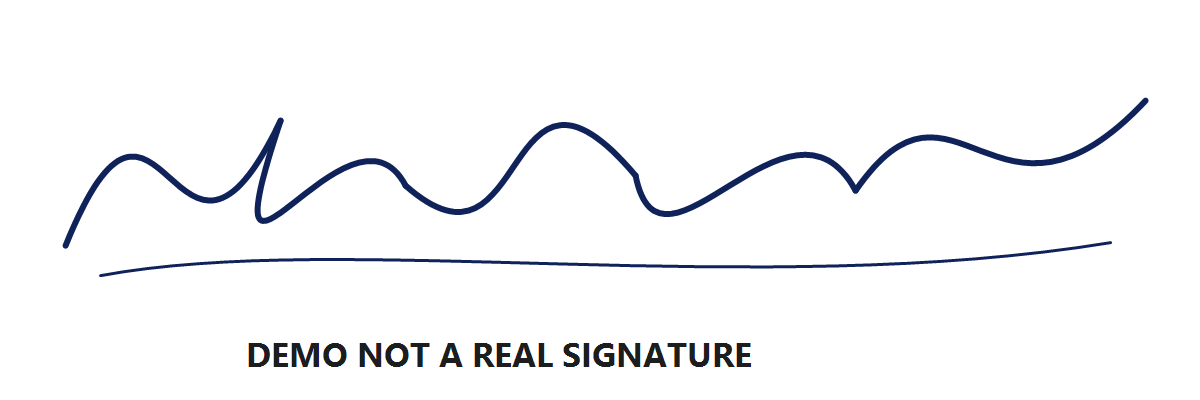
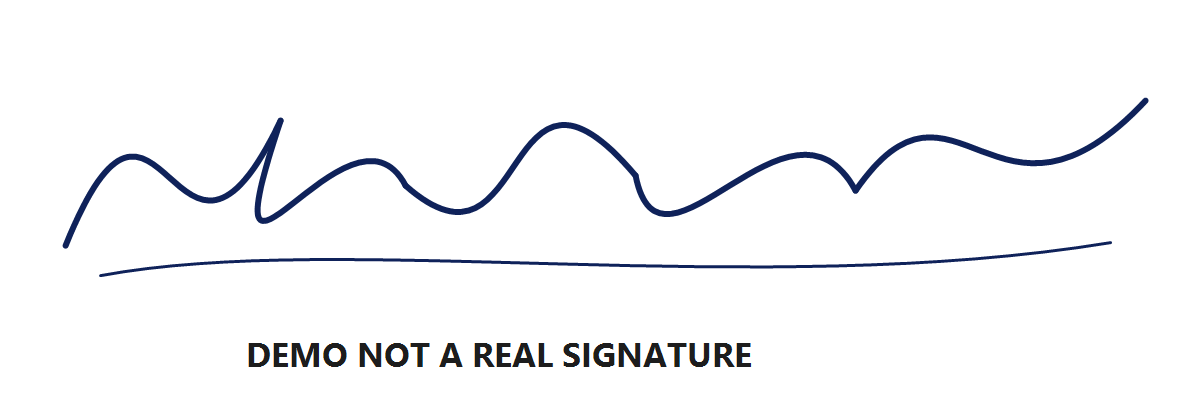
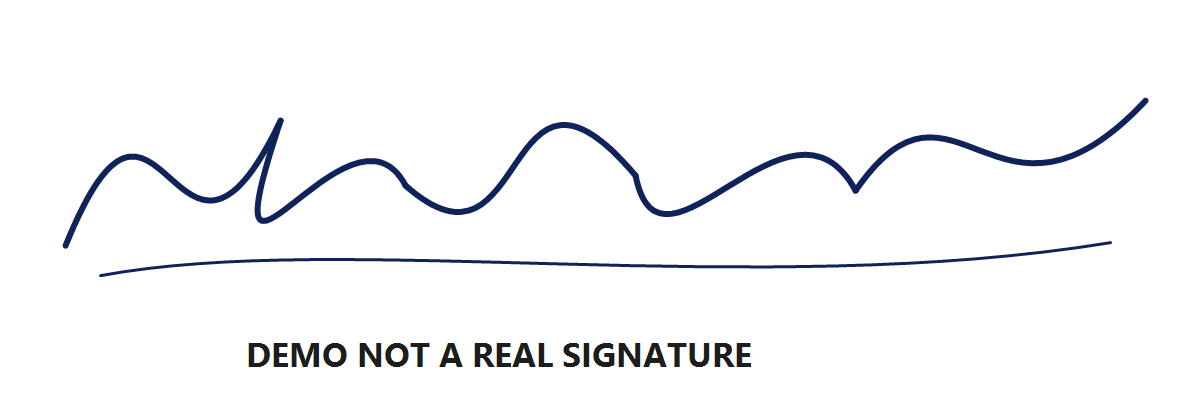
Original: 20,040 bytes · 1,200 × 400 pixels
Result: 20,040 bytes · 1,200 × 400 pixels · PNG
Original file preserved: no re-encoding or pixel changes.
A smaller file is useful only if its important details remain readable. These examples demonstrate the tool, not approval by any application portal.
A maximum is not an instruction to fill every byte. Leave Minimum size empty unless a lower bound is stated. For a range such as 30–75KB, set Maximum size to 75 and Minimum size to 30, then choose Under or At most to match the upper-bound rule.
ImageTool searches for a real encoded image inside the range. A minimum is a constraint to check, not a guarantee that a tiny file can be enlarged. The tool does not add unused padding to increase file size. An unsatisfied range returns a clear failure; do not remove a genuine destination requirement just to obtain a passing result.
Leave width and height automatic if only file size matters. If the destination specifies pixels, enter them in Other upload requirements. Supplying one dimension calculates the other from the original aspect ratio; supplying both lets you keep the whole image with added space or crop the centre.
Your specified dimensions stay fixed. If the tool cannot meet the file-size bound at those dimensions, it reports failure instead of quietly making the image smaller. Review the full-size result to confirm that cropping, padding or compression has not removed important information.
JPEG is the default and can remove detail when re-encoded. PNG keeps transparency, but a detailed photo may need fewer pixels to fit a low KB limit. Renaming a file does not change its real format.
Use the image compression quality guide to compare the same synthetic originals at several limits. A file that already matches the requested format, dimensions and bounds can be kept unchanged; a smaller number is not automatically an improvement.
Check the rules for your destination
Different organisations can require different limits, dimensions, backgrounds and file formats. Check the current official page for your specific application and year. A general search for a photo compressor cannot tell you all of those rules.
This site is an independent tool. It is not affiliated with an application portal and cannot guarantee acceptance. Use the page in the language you prefer, while keeping the numbers and format from your actual form.
Yes. Enter your own positive maximum in the visible field. Presets are shortcuts, not the only supported values. Processing still depends on the source image, requested dimensions and browser limits.
No. A byte limit does not imply a particular width or height. Enter exact pixels separately only when required, then inspect both checks in the result.
One KB is 1,000 bytes; one KiB is 1,024 bytes. The value in Maximum size is interpreted using the selected unit, so changing the unit changes the byte limit. Copy the unit from your destination.
No. It targets the bounds you enter and may return a smaller valid image. It does not insert padding to force an exact byte count. A lower bound can be added when the destination requires a range.
No. A lower maximum may require stronger JPEG compression or smaller dimensions. Use the destination’s actual allowance and check faces, text and signatures at full size.