Image Brightener
Brighten or darken a JPG or PNG in your browser while keeping its pixel dimensions. Compare the original and result, then save as PNG or JPEG.
Free · No sign-up · Processed on your device
Drop a JPG or PNG here
JPG or PNG · up to 40 MB · 32 megapixels
Click either image to view it at full size.
Brightness
Positive values brighten the whole image; negative values darken it. This does not recover missing image information.
PNG keeps transparency. JPEG uses a white background.
Compare a brightness adjustment
This synthetic dim scene uses a brightness setting of +30. Both the original and result are 1200 × 800 pixels.
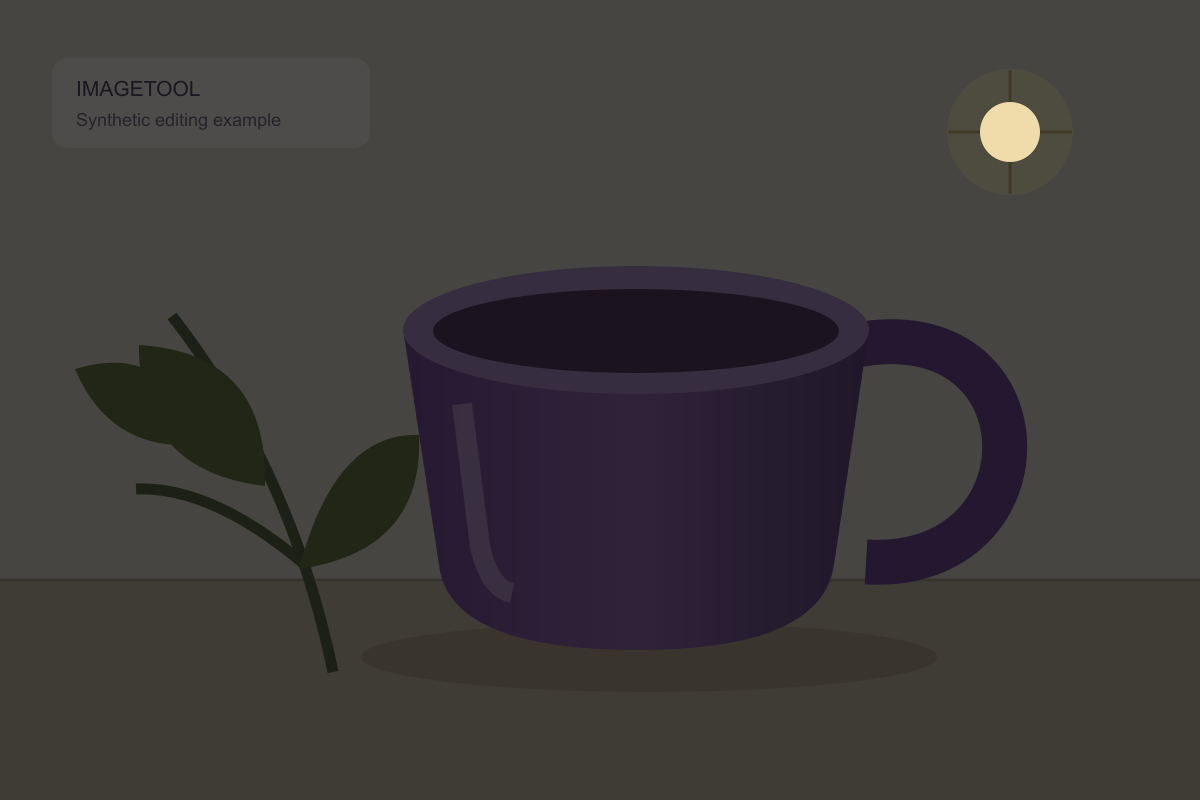
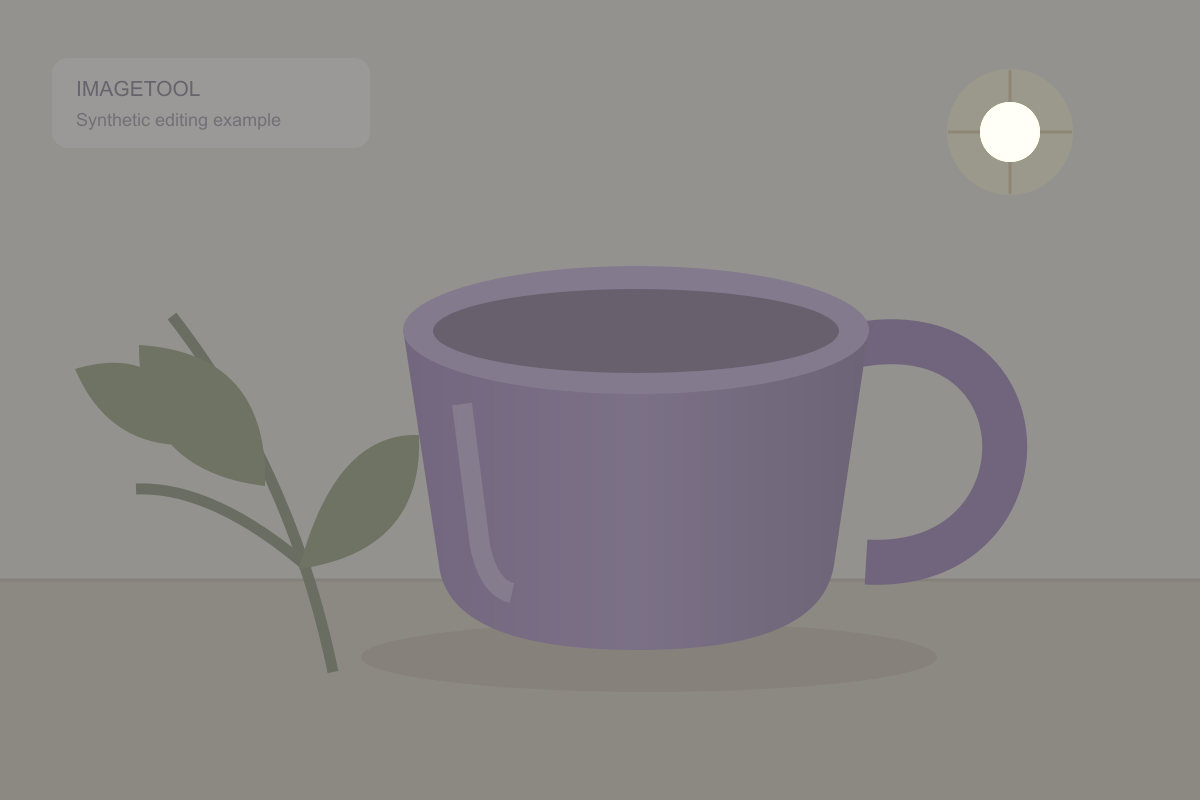
The adjustment affects the whole image. It does not selectively restore shadows or recover missing highlights.
How to brighten an image
Choose an image
Choose a JPG or PNG from your device, or try the sample.
Adjust brightness
Move the slider or enter a value. Positive values brighten; negative values darken.
Compare and download
Check the original and result, choose PNG or JPEG, and save the file.
Image Brightener questions
Does this brighten only dark areas?
No. This is a whole-image brightness adjustment. It does not isolate shadows, recover clipped highlights, or reconstruct missing detail.
Will brightness change the image dimensions?
No. The brightness editor keeps the original pixel width and height. The encoded file size can still change.
Can I make an image darker too?
Yes. Use a negative value to darken the image, a positive value to brighten it, or 0 to leave brightness unchanged.
Make a photo brighter with a controlled adjustment
Use the image brightener for a picture that looks too dark overall. Start with a small positive value, compare it with the original, and adjust until the visible result suits your purpose. The scale runs from −100 to +100, with 0 leaving brightness unchanged.
The setting affects the whole image. It is not a percentage of recovered detail, an exposure correction in camera stops, or an AI enhancement. Large positive values can wash out bright areas; negative values make the photo darker.
What a photo brightener can and cannot fix
You can brighten a picture while keeping its pixel dimensions. This tool does not crop or resize it, sharpen a blurred photo, remove noise, or bring back information that was never captured. Inspect faces, pale backgrounds and highlights when you make a photo brighter.
Brightness changes may also change the downloaded file size. There is no target KB setting here. If your final image must fit an upload limit, download it and use the 50KB image compressor; inspect the compressed result again before submitting it.
Compare, reset and save
Compare the original and result side by side. Click either preview to inspect the image at full size. Reset brightness returns the adjustment to 0. PNG keeps transparency; JPEG fills transparent areas with white and may add compression artifacts.
You can brighten a photo online without an account. Processing stays in your browser on your device, and the picture is not uploaded for editing. Download the result as PNG or JPEG, then select that saved file in the destination app or form.